Nested Flow (Reusable-Function) cheatsheet for Microsof Flow

To build complex, but maintainable Flows, it is important to be familiar with this next step.  The Flow blog calls this Nested Flows, so I will stick with this term.  What this really is in essence, is how to build Flows as a reusable function or service.  I want to then expand on the official blog post and then go far beyond.

This is the second of the cheatsheet series on Microsoft Flow.

  1. JSON cheatsheet for Microsoft Flow
  2. Nested-Flow / Reusable-Function cheatsheet for Microsoft Flow (this article)
  3. Building non-JSON webservices with Flow
  4. One Connection to Proxy Them All - Microsoft Flow with Azure Functions Proxies
  5. Building Binary output service with Microsoft Flow

In this post, we will cover:

  1. Define a function request
  2. Define a function return
  3. Call a function with parameter
  4. Parse a function return 

Part 1. Define a Nested-Flow like a function

function(word: string, number: number, complete: Boolean)
Let's say we want to define a function with a few arguments.  Start with the Request trigger.  This Flow will run when a request is sent to the Request URL.

We will need to provide the JSON schema that defines the arguments we want.  Anytime we see "Use sample payload to generate schema" immediately click it.  Life is way too short to learn JSON schema.

Type in the JSON we want to send to this end point.

{
    "word": "a word",
    "number": 5,
    "complete": false
}

The JSON schema will be generated for us.  Easy.

Define the return value from Nested-Flow

function() -> { word: string, number: number, complete: Boolean }
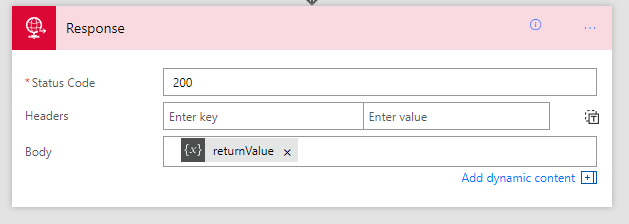
Our Flow doesn't need to return a response.  But if we want it to, we can use the Response Action to specify what the response is.
Response Action is a terminating action.  We can't add anymore actions afterwards.

response-1.png

There are many ways to set up the response JSON.  Here we use a variable and initialize it to the values from the Request trigger.

Test Nested-Flow

First, save the Flow - the HTTP Request URL will be generated after save.

Poke the URL with Postman

Note: We have to set content-type to JSON (application/json), otherwise Flow will treat the entire body as plain text.

See how the request is sent to Flow, then returned.  The return type is JSON

So far so good.  Our Flow responds to a HTTP call and returns values.

Technically, there's nothing nested about this Flow, not until we call it from another Flow.  Let's do that next.

Part 2. Call a Nested-Flow

The official blog post covered most of this.  So I'm including some pictures with light commentary.  These steps are pretty easy.

We can call HTTP with a literal JSON in the body.  But I find in reality, we will almost never do this.  We are always constructing a JSON to be passed in.  So I would start with an extra variable.
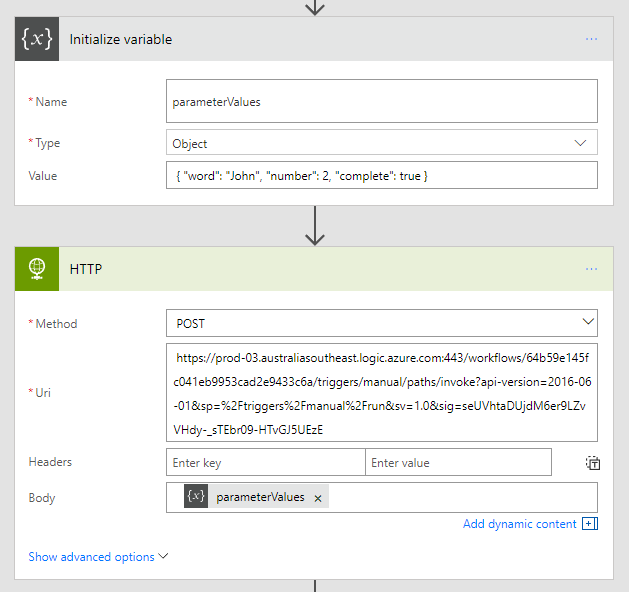
Parsing the return value from the Nested-Flow

When the HTTP action returns, we will have a body text.  This is not strongly typed and we can't work with this easily.  The magic is to use the action "Data Operations - Parse JSON" to force the body json into a JSON schema and extract strongly typed variables we can then rely on.

We will get used to "use sample payload to generate schema" pretty quick.  Every time we see it we should immediately click it.
Since the Nested-Flow wants the same object that we defined in Part 1 above, we will use the same JSON sample.

Flow then understands we have strongly typed properties to work with.

Test the Run Nested-Flow, Flow

The parent Flow calls the Nested-Flow, and gets the return values.

So now we have four patterns:

  1. Define a function request
  2. Define a function return
  3. Call a function with parameter
  4. Parse a function return 

These are the four basic steps in this cheat sheet.  What they unlock.  Is the most powerful workflow product ever.

We need to wrap this up with an ultimate example.

Crazy Example: Fibonnaci Flow

Wait, John, did you say fibonnaci, you mean that recursive function...  

fibonnaci (n)
f(0) => 0
f(1) => 1
f(N) => f(N-2) + f(N-1)

So this is a recursive Flow 

We switch on the 'n' parameter.  If 0,1 we return.  If n, we do n-2/n-1.  
If n is negative, we would be in big trouble ;-)

simple recursion.  fib(2) = 1

deeper recursion.  fib(4) = 3

Always a good reminder that the naive implementation of recursive fibonnaci is very costly in terms of repeated recursion.  fib(4) is 10 runs.

Examining one of the runs - results of fib(3) + fib(2) = 3

Why this is a Game Changer

I hear about how Microsoft Flow is not ready for consumers.  Well, I think they are all wrong really ;-)  Microsoft Flow is amazing.  Yea the UX has bugs.  Sometimes you just need to stand on sharp broken edges to see greatness.  In Australia we say: suck it up princess.

Here's twelve reasons why you need this.  You needed this yesterday, no, I asked for this 5 years ago.

  1. You should put repeated steps into a separate function you can call.  This is like basic functionality. 
  2. e.g. Email someone
  3. e.g. Retrieve an email template from SharePoint then email someone
  4. e.g. Retrieve an email template and recipients list from SharePoint/Azure AD then email someone. 
  5. e.g. Spam the Team's conversation thread with an urgent message
  6. There are concepts very similar to this in various workflow systems I've used - User Defined Actions, WF Custom Workflow Activities, except Nested-Flow just works.
  7. If you are chaining Flow Trigger -> Azure Functions -> Flow Delay -> Azure Function.  This gives you ultimate flexibility.  There is no built in "delay" in Azure Function.
  8. Have you EVER wish you had SharePoint Workflow that could call itself?  Revolutionary.
  9. Your JavaScript can call the Flow - Julie Turner has a great post on this
  10. Because Flow supports unwinding a failed action set - you can put fail handler in a … Flow.  It's Exactly like a Flow - try/catch block.
  11. Because in one Flow you have a top secret connection that only you can use.  But you want other people to be able to reuse the action, which is configured with your top secret connection.  But you don't want to tell other people what your top secret connection is.
  12. Because Flow, on top of LogicApps, belongs to that wonderful category of Azure solutions under the Serverless banner.  Yes no servers.  Few people will care about servers in the future.
  13. Because Flow don't let you copy and paste actions.  Are you really going to manually re-create all those steps?

You tell me!  There's got to be a hundred reasons right here.  I'm literally adding new points as I type because there is just so many possibilities.

If you are doing Flow, you need to master this technique.  No exceptions.
 

References


JSON cheatsheet for Microsoft Flow

I have a big blog post in the works for a significant dive in Microsoft Flow functionality.  But I realized that before we get there, we need to GET GOOD at doing JSON in Microsoft Flow.

So this is the cheat sheet.  With all the caveats.  Enjoy!

Update: added a compound JSON object construction.

This is the part of the cheatsheet series on Microsoft Flow.

  1. JSON cheatsheet for Microsoft Flow (this article)
  2. Nested-Flow / Reusable-Function cheatsheet for Microsoft Flow
  3. Building non-JSON webservices with Flow
  4. One Connection to Proxy Them All - Microsoft Flow with Azure Functions Proxies
  5. Building Binary output service with Microsoft Flow

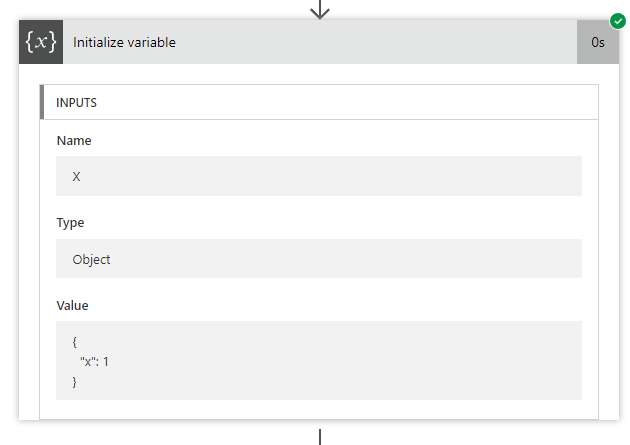
var X = { "x": 1 }

{ "x": 1 }

And this is the running results

X = JSON.parse("{ 'x': 1 }")

Flow-2.png
"@json('{\"x\": 2}')"

X is updated.  But the run result panel for Set variable shows incorrect INPUTS value of X

{ ...X, { 'y': 2 } }
jQuery.extend( X, { 'y': 2 } )

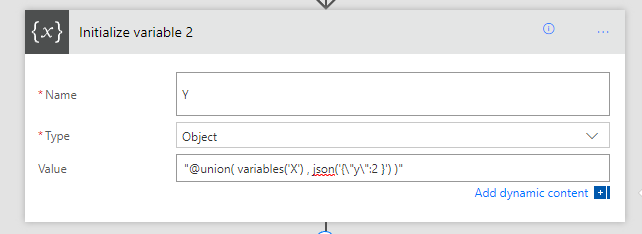
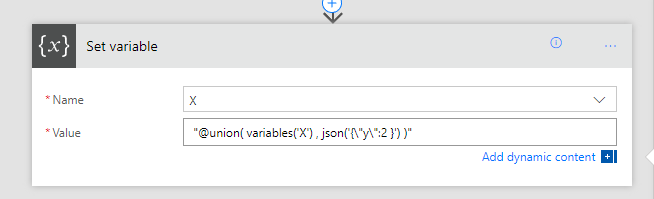
"@union(variables('X'), json('{\"y\":2}'))"

Union is great - it'll let you add properties to existing objects easily.


var Y = { ...X, { 'y': 2 } }

Flow-4a.png

Use union to set variable

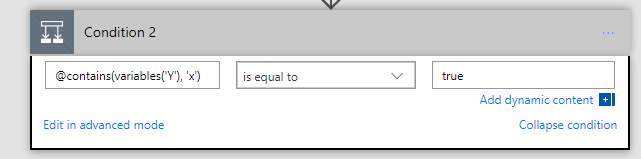
if ( Y.x != null )

sometimes, you need to check if an object contains a property

sometimes, you suddenly don't need the " double quotes for conditional statements. 
sometimes I feel this is a bug.

Flow-5.png


The UX can get quite silly.  It forgets how to render the basic view after you save.

(Y.x || Y.y)

"@coalesce(variables('Y').x, variables('Y').y )"


Use Coalesce to pick the first non-null value.  If the property doesn't exist this will error.  Protect the check with contains

X = Y

And we end this cheat sheet on a simple one.  Assigning variables to another.

Note you can't currently use the variable in setting the variable itself.

This would have been REALLY useful...  Because this would have let us keep appending to existing variable.


Finally, object composition
var Z = { z: Y }

"@json( concat( '{ \"z\": ', variables('Y'), ' }'  ))"

The result, see how a compound JSON object has been constructed.

Are you Cloud-Curious or Cloud-Serious? Azure Functions in DWCNZ 2017

I had a fantastic time at Digital Workplace Conference in NZ.

Highlight Sessions

There are many other great sessions, I wasn't able to be in multiple places at once!

My Own Session

I presented Azure Functions in Office 365 - Building Serverless Solutions

There were a few things that I didn't managed to get through.  I wanted to list them here, and hope you will accept my apologies.  I've had several conversations with you all over the two days of the conference, many wanted deeper details into certain aspects of using Azure Functions.


Demo: Timer Based Alert with Email

https://github.com/johnnliu/azure-functions-o365/blob/master/sharepoint-list-email.ps1

This demo outlines a very simple script that will connect to a SharePoint list (or document library), query and fetch list items, format them into HTML and email to user from the System Account.

Combined with a schedule, this is an extremely common scenario in SharePoint Online: you want to schedule a smart alert email once a week, based on a filter to a list.


Using Recurring event in Flow instead of Azure Functions Timer-Trigger

While you can schedule tasks in Azure Function via a Timer Trigger, Microsoft Flow's recurrent trigger has several benefits:

  • You can create a Team Flow - so multiple users can be owners and configure the recurrence trigger.
  • The UI for setting up a time for the trigger is more obvious for power users.
  • You can easily see past runs from within Flow
  • You can easily re-run a Flow


The Severless "Specturm"

From my own experiences and from reading and understanding the greater scope of Serverless solutions that are being designed in the world, I wanted to present the spectrum of Serverless solutions.  We start on one side - from the Cloud-Curious, to the experts - the Cloud-Serious.


Cloud Curious

The majority of the presentation is pitched for the cloud-curious.  You have heard of Azure Functions and Serverless.  The demos presented how to get going really quickly.

Functions are thus:

  1. Micro (web) services for everyone.  So many people I talked to has given up on programming, thinking writing microservices or complex architecture isn't for them.  It's for the young'in dev teams now.
    AzureFunctions, especially with PowerShell - flipped the whole thing upside down.  Now, many 'ex-developers' suddenly find themselves build amazing service end points, connecting them to webhooks and Azure Blob Queues.  It is an amazing resurgence and move to microservices.  And everyone's having fun playing with really cool new toys.
     
  2. Use your favourite language!
    C#?  JS?  PoSH?  F#?  You can even use TS or VB.NET compiled.  Nobody can tell you what language you can and can't use.
     
  3. Perfect solution for many problems in SharePoint customizations
    Elevate permissions
    Webhook and event receivers
    Timer Jobs
    Extending Flow (as custom workflow action)

    If you are bringing customizations in SharePoint On-Premises to SharePoint Online - Azure Functions is a solution that must be evaluated.  It fits so many scenarios that you need to bring your On-Premises customizations forward, without breaking the bank, or needing complex re-development.


Cloud Serious

For the cloud serious - you are already using simple functions.  You want to know what's next.

  1. "Idempotent" - this is the keyword that will define the entire Serverless Framework.  You want to design functions that has no side-effects if you rerun.  A function can fail, it will automatically retry until success.  Your function must be built to be retry-safe.
     
  2. Use message queues and service bus to scale your Function.
    In Serverless, you are bound by duration.  You are not bound by parallel compute.
    To scale your long running process, split into a Queue and spawn infinite parallel compute.
     
  3. In a serial code, we wanted to catch all our exceptions to speed up long running tasks.  When we convert to parallel compute - we no longer really care about exceptions.  If you fail, you want to fail fast.  Throw exceptions freely and as fast as possible.  Terminate the function.  Let Queue retry automatically.
     
  4. With the new Azure Functions Proxies, we can create Serverless Web Applications - which is essentially combining a CDN to host static resources, and Functions to run server side code.

    Future of Serverless web apps is basically: CDN + Functions
    Both scale in parallel infinitely, by default, by design.  But is easy to understand and accept in concept.

    You do no worry about scaling VMs, AppPools, IIS, WebJobs, WebSites... 

Your solutions sits on top of all of those things - but there is no fear.  A fast messaging queue with built-in retries and a thousand atomic hammers will carry your workload from now to infinity.  And it'll cost less than your coffee.


Slide downloads

https://github.com/johnnliu/pptx


Taking a picture with PowerApps and sending to SharePoint with just Flow

Less than one day after I wrote about Taking a picture with PowerApps and sending to SharePoint with help of Azure Functions - I was looking at Flow to do another thing with recurring calendar events, and reading about how Logic App's Workflow Definition Language can be used in Flow.  Then as I scrolled down - I saw this: dataUriToBinary

This was the heart of the problem in converting PowerApp's camera image (Data URI) for SharePoint File upload (Binary).  That I solved with an Azure Function.

And here it is, again, staring at me: dataUriToBinary()
And I know I'd have to write this new post.  

Create the Flow from Template

Using Advanced Formula from Logic Apps Functions in Flow

https://docs.microsoft.com/en-au/azure/logic-apps/logic-apps-workflow-definition-language#functions lists the Logic Apps functions available to Flow.  There are some tricks to make the syntax work - but they are all the same, so practice makes perfect.  Also, there is a LOT of functions.  So it should be fun.


Add Compose Action

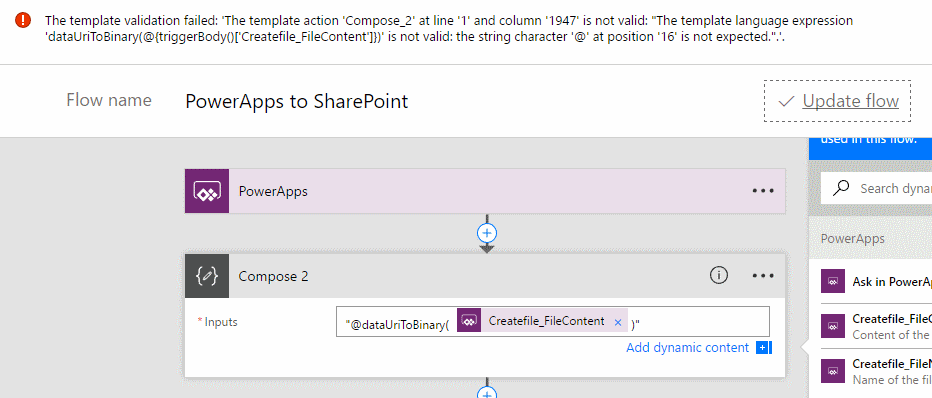
Add "@dataUriToBinary(  ...  )" drag in Createfile_FileContent.  It'll look OK at first, but if you try to Update flow, you'll get an error.

The template validation failed: 'The template action 'Compose' at line '1' and column '1947' is not valid: "The template language expression 'dataUriToBinary(@{triggerBody()['Createfile_FileContent']})' is not valid: the string character '@' at position '16' is not expected.".'.

Note 2018: the Flow designer has been changed since 2017, and the way to write this expression has changed.

  • Create a Compose action

  • In the dynamic content panel that pop up on the right, select expression editor

  • Type in dataUriToBinary(triggerBody()['Createfile_FileContent'])

  • Note, without the prefix @

  • Hit OK to write the expression into the Compose

Note: Once you save and come back, it won't show the " quotes anymore, and it isn't updateable.

flow2.png


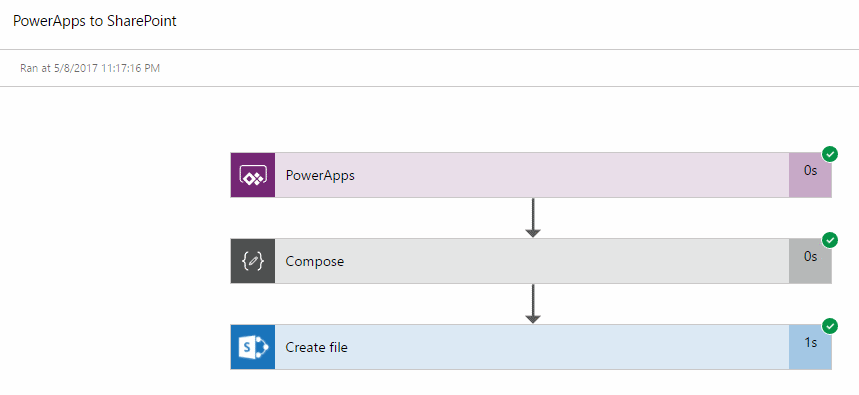
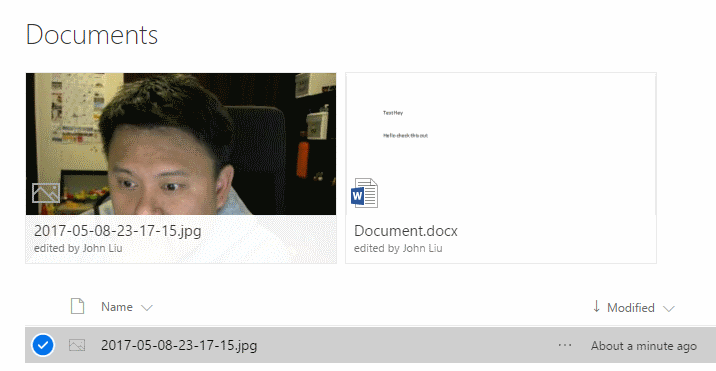
Result

So that's all - DataURI to Binary conversion for PowerApps camera to go to SharePoint file.


In a way, I'm glad - even in my previous post I argued that data conversion should be native, and shouldn't require a developer.  So this is kind of my wish come true.


Taking a picture with PowerApps and sending to SharePoint with help of Azure Functions

Taking a picture with PowerApps and sending to SharePoint with help of Azure Functions

Sometimes, after having written a selfie app in Silverlight, JavaScript, even an Add-in (SharePoint Online), you want to do it again with PowerApps.  This is that article.  I think it's really fun.  And I think it's funny I'm solving the world's problems one AzureFunction at a time.  And I think I need help.

Read More