InfoPath - abusing a secondary datasource as temporary variable


This is an InfoPath technique that I've recently started using, and is pretty awesome.

Problem:

  • InfoPath is great with rules and fields, but modifying the field means that your form has now changed.  In code behind we have formstate variables, but they are not visible by InfoPath rules.
  • We may want to change these fields in later versions of the template.
  • If only we can have temporary variables to use in InfoPath

Solution in one sentence:

  • Create a secondary datasource, use abuse it to hold variables that you don't want to save to your main form


Real Example

How to detect if your form has been changed by the user since it was opened.  This is a tweaked version of Alec Pojidaev's How to check if your InfoPath form is “dirty”? (Tracking changes) using secondary temporary variables.


Steps

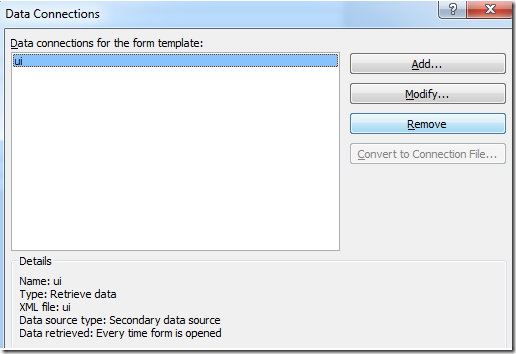
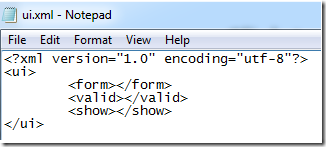
  1. Create a separate secondary datasource
    image
  2. Add the XML file as a secondary datasource
    image
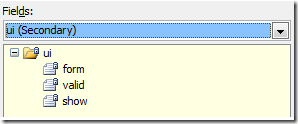
  3. Now we have a secondary data source that we can use
    image
  4. Use that datasource to keep all the "UI" logic.  Such as:
    • "a checkbox to confirm whether I want to save and close, or just close"
    • A rich text field to show a message that I display on a separate message View
    • Various validation or toggle Booleans to control the UI
  5. Because the secondary datasource is not saved back to the main datasource, changes to the secondary datasource tree can be considered "discarded", effectively giving us "temporary variables" that rules can use.
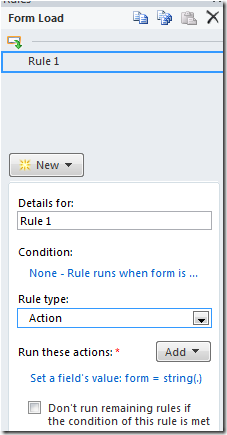
  6. Create the form rules
    image

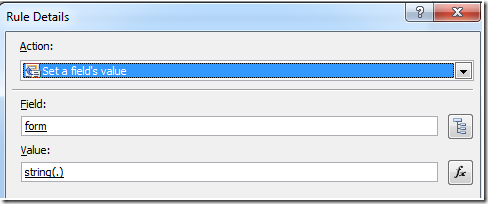
  7. Set the field "Form" on the secondary data source to that of the current main datasource
    image
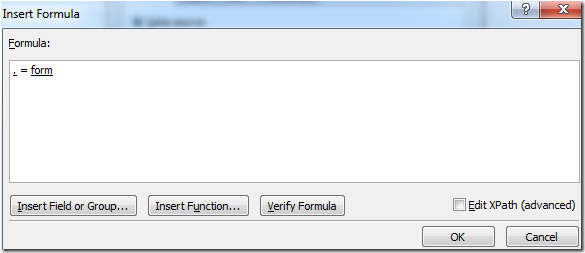
  8. To test if the current form, at a later point in time, is the same as the form when it was opened
    image

Demo

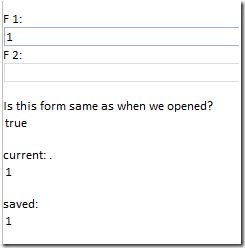
  1. On open, is the form the same as when we opened?
    image
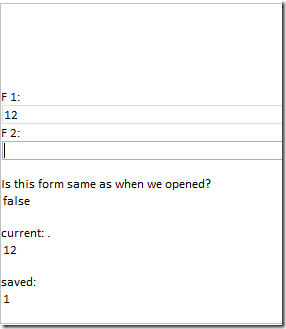
  2. After some changes
    image
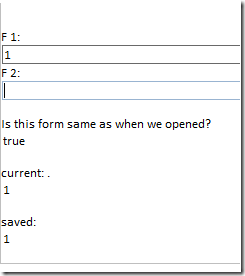
  3. Delete our changes - "true" again
    image


How to use it

  1. When a form is opened, use rules (or code) to set the default values in the secondary datasource
  2. Through the lifetime of the form you can set the values to whatever you want, and use it in conditions
  3. When the form closes it doesn't get saved

Benefits

  1. You can track UI logic without actually modifying the main form
  2. You can then use the string(.) trick to save the current form on form-load, then use that value to compare with the form at a later date to see if the form had been changed by the user
  3. Some values, like "current user displayname" can be stored temporarily and is perfect for this
  4. If you didn't like a temporary variable, just remove them or rename them.  Because they are not saved to the main data source, you don't have to worry about breaking existing or future forms.
WindowsPhone 7.5 Mango and Office 365


Adding an account

  1. Go to settings | email + accounts | add an account | Outlook
  2. Provide Office 365 login email and password
  3. Once setup, the account will default to the name Outlook (or Outlook #)
  4. In settings | email + accounts, tab the Outlook entry once and you’ll be able to change the name to something more meaningful, like Office 365

Office hub

  1. Now in the Office hub, you can connect to your Office 365 account. 
  2. The first time you login it will open a web browser control and ask you to login.  You can choose to remember login and password to skip this step in the future.
  3. Once authenticated, you’ll see the a view of the lists and document libraries from your Office 365 team site

For those of us keeping itchy to write our own SharePoint - WindowsPhone applications, Microsoft cheated here and the web browser control used in step 2 is accessed via COM to obtain the cookiejar file, which contains the tokens for the Office hub to talk to Office 365.

InfoPath - how to do case-insensitive text compare

Because XML is case sensitive, in InfoPath you have the problem that field may not be equal to another field during text comparison due to their case.

One way that people have been relying on is the TRANSLATE function, which requires you to write really crazy code like this:

translate( /my:fieldx, "ABCDEFGHIJKLMNOPQRSTUVWXYZ", "abcdefghijklmnopqrstuvwxyz" );

Except you usually need to do this for both sides of the equation.


A less well known function is actually the Microsoft extension msxsl:string-compare

http://msdn.microsoft.com/en-us/library/ms256114.aspx

Here you can use this to compare the current user's name.

msxsl:string-compare(my:a_user, xdUser:get-UserName(), "", "i") = 0

The string-compare function will return 0 based on whether the strings are identical.  The 3rd optional argument is language, using an empty string will default to system.  The 4th optional argument is case-insensitive.

The msxsl:string-compare is supported in both InfoPath 2007, 2010 and works in browser forms.

Check it out! :-)

InfoPath – designing verification form

I’m quite a fan of having a validation summary block in InfoPath, similar to how one would have validation in ASP.NET.

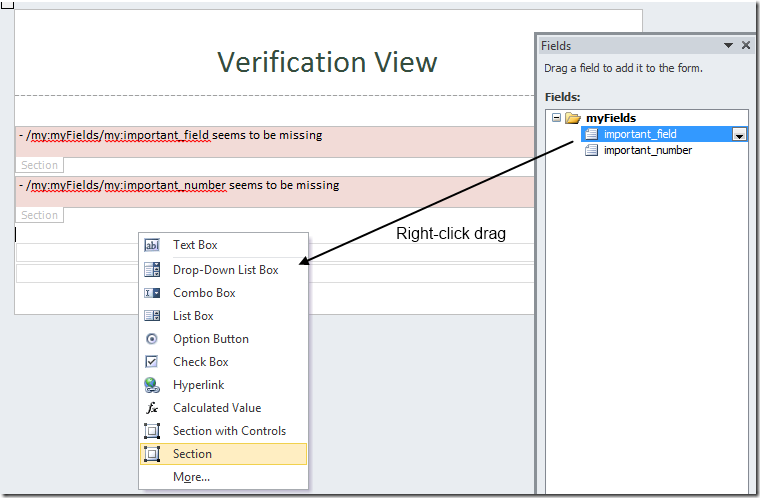
To start, we can create sections directly from our fields.

image

You can right-click drag the fields directly into the designer and select “Section”.  This will create empty sections that are bound to the fields directly.

Put text labels within the sections with a friendly message for each field.  I also made the default background light red.

image

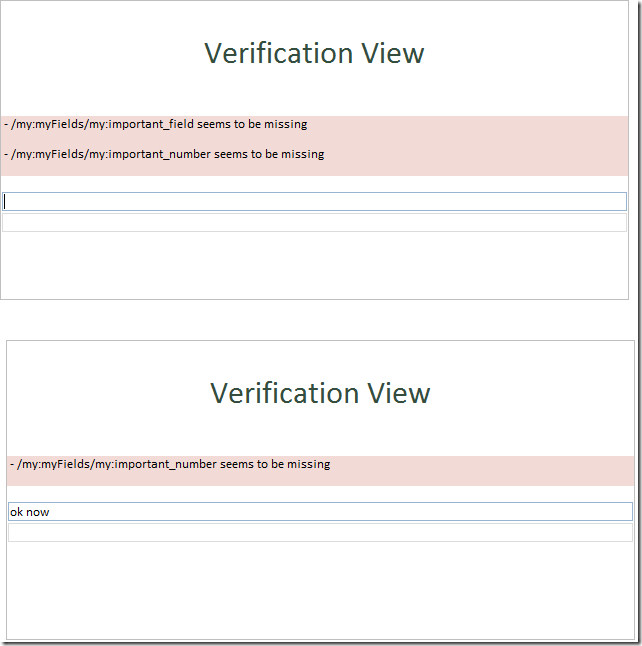
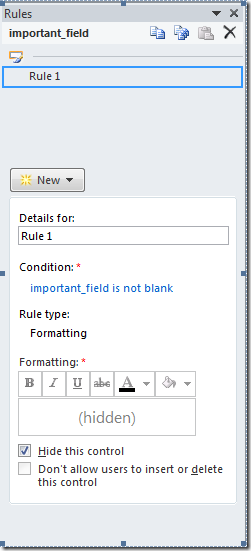
Create validation rules to ensure the field isn’t blank.  Hide the control when they are valid.

image

The end result is a pretty view for validation.  When the textbox is blank, the validation warning appears.

SP2010 pretty up mysite with showModalDialog

Disclaimer: Totally, unsupported.

OK, that’s out of the way, let me describe the problem. 

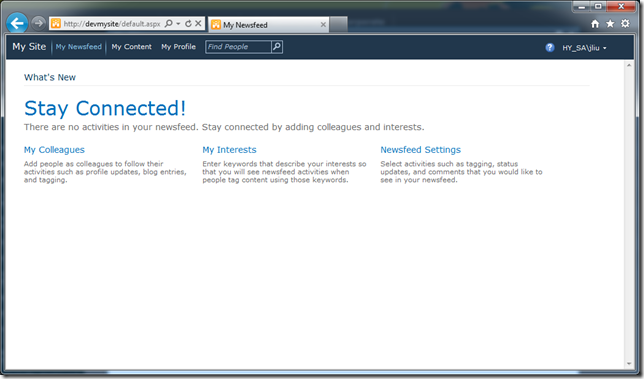
SharePoint 2010 ships with this pretty mysite.  Packed with features.

image


The problem is, your users gets lost.  It doesn’t look anything like your nice branded site.  It doesn’t share the same global navigation.  In fact, users are so lost that they think they are in a place that they shouldn’t be in. 

Result?  They close the browser.


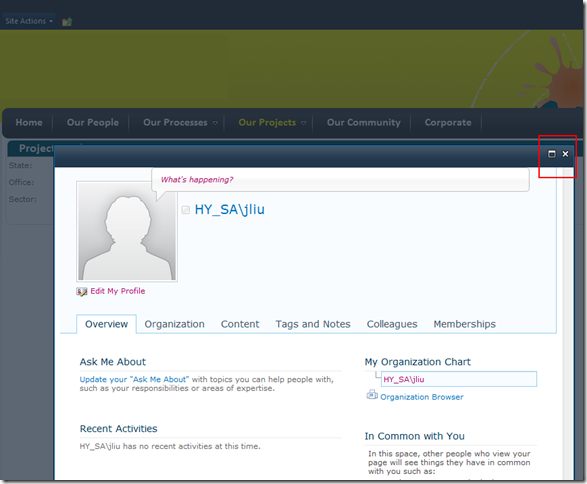
If only we can render our mysite in a SharePoint 2010 showModalDialog, then it would look like this:

image


  • Mysite remains totally un-branded, but now it is just demoted to an utility page
  • Users are familiar with the SharePoint modal dialog, and can easily close the mysite via the top right close buttons.
  • Users don’t feel like they’ve left the site, because they can clearly see the previous page right beneath them.


I did a simple prototype by overriding a SharePoint javascript function:

$(document).ready(function(){

    window.oldSTSNavigate2 = window.STSNavigate2;
    window.STSNavigate2 = function (evt, Url){
        if (Url.indexOf("mysite") != -1) {
            SP.UI.ModalDialog.showModalDialog({
                url: Url + "#",
                title: "My Site",
                autoSize: true
            });
            return;
        }
        window.oldSTSNavigate2(evt, Url);
    };
});

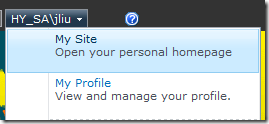
STSNavigate2 is used by these out of the box menus:

image