My Geek Origin story, creativity meets engineering


It all started with…

LEGO

My brother and I grew up around LEGO, dad says that’s because he wanted to play lots of LEGO but couldn’t afford it when he was a kid, so he made sure we had them.  I think LEGO is unique in that as kids, we had to build with our hands what we wanted: MASK, VOLTRON, TRANSFORMERS, Knight Rider’s KITT and its mobile truck, ROBOCOP and ED-209, various Star Wars vehicles… etc.  You see something you wanted on TV or cartoons, you map it out in your mind how you’d build it, and then you build it, with your limited bricks.


PAPER and PENCIL

Mum was the one that gave us paper and pencil, which eventually led us to paper craft.  What we couldn’t do with LEGO, we improvised with our own sketches, scissors and glue, and lots of sticky tape.  With paper we drew secret bases that could withstand a full scale alien invasion, and made worlds, futuristic cities with busy interlocking highways. 

The best part about working with paper was the near-limitless freedom in your creations.  The drawback was how fragile paper was.  You can’t really “play” with the paper models you’ve made.  Yes it’s an awesome model, but god-forbid showing it to your 10 year old nephew.


MUD and LPC

In university, while learning all the wonders of assembly, operating systems and every known Artificial Intelligence method known to man, I fell in love creating MUDs.  A Multi-User-Dungeon is essentially a telnet interface to a world described in text. 

Like a great book, the environments, characters that you interact with are completely within your imagination.  Banish the thought if you think creative writing is easy, read this, and then try to write your entire city without duplication room descriptions.  While modern MMO reuse assets such as an inn (or a cave layout) over and over, we actually have high standards and reusing assets was a sign of sloppy workmanship that’d be rejected during peer review.

The language of choice for me was LPC, an object-oriented variant of C that represented everything in the world as objects.

A person login to this world is given a player object, and moves about in the world via interconnected room (objects).  Each room has X and Y coordinates, so you can work out where that person is in relation to someone else at any point in time.  Hey, we’ve just invented a GPS system.

Players have different races, and whether through racial ability or via magical or technological means, they are able to fly.  To implement flight we gave everyone a Z coordinate, and modified the world so that it constantly applies gravity to pull everyone down to the ground level.  Hey we’ve just invented gravity.

I was watching the animated series Gargoyles and loved how the creatures can’t fly, but can glide once they climbed enough height and leap off, say a clock tower.  Added soaring and swopping – hey, we’ve just invented aerodynamics and gliding.


Computers are the ultimate tool for a creative mind – you are only limited by your imagination, and not by the bricks that you don’t have.  In my world, when I say there will be something, it comes into being.

This is my Geek Origin story.  

:-)
Changes in SharePoint Client Object Model Redistributable SP1


Summary:

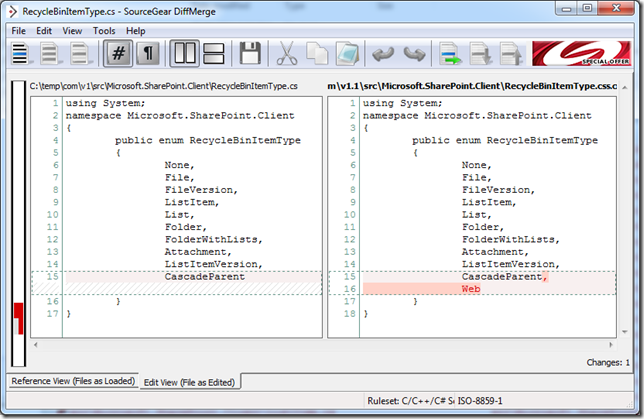
  • Enum Microsoft.SharePoint.Client.RecycleBinItemType.Web was added in Silverlight Client Object Model SP1.  No other significant changes noted.
  • This means old code using the previous version of the Client Object Model will work fine without recompilation.  Unless you happen to be doing stuff in the RecycleBin
  • I wish I had my evening back


Microsoft’s SharePoint Client Object Model Redistributables

Microsoft announced that along with the latest shiny SharePoint 2010 Service Pack 1, they are also releasing an updated SharePoint Client Object Model Redistributable SP1.  These are the libraries for .NET and Silverlight that you can use to talk to SharePoint, without having actually installed SharePoint on your machine and pulling the same DLLs from the /ClientBin/ folder.

http://support.microsoft.com/kb/2508825

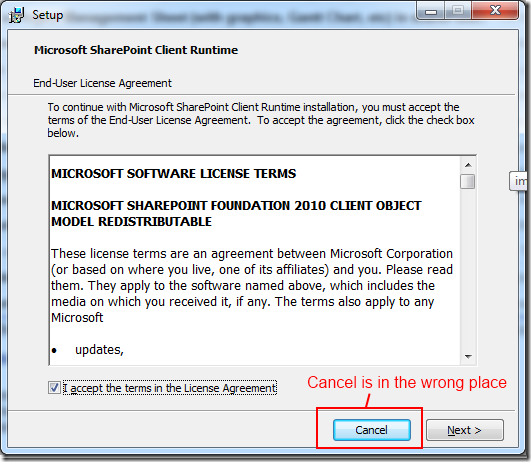
image

Figure: installing the redistributable.  Note the Cancel button is where you expect Next to be :-(

Once installed, they are hiding in

C:\Program Files\Common Files\Microsoft Shared\SharePoint Client


Did anything actually change?  Do I have new secret goodies in the client object model?

Being the Silverlight and SharePoint fan that I am, I set about discovering what were the changes between the first RTM version of the Client Object Model vs. the Service Pack 1 version.

First thoughts were odd, but at least drove me onward:

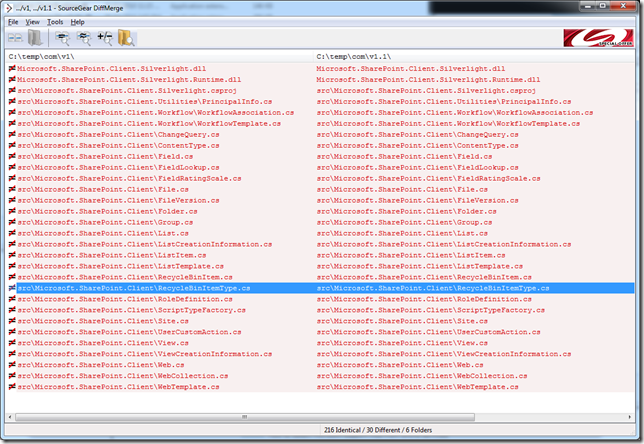
image

Figure: RTM DLLs


image

Figure: SP1 DLLs


The striking thing was essentially, there are no differences in Microsoft.SharePoint.Client.dll and Microsoft.SharePoint.Client.Runtime.dll – these are the .NET versions.

But there was a change in Microsoft.SharePoint.Client.Silverlight.dll and Microsoft.Client.Silverlight.Runtime.dll – these are the Silverlight versions.

What’s also interesting was that the changes were done in October last year and guessing from the file size differences it doesn’t look like it was a major change.


Undeterred, I disassembled

image

Figure: Only minor changes in most of these files.


The only difference that is significant:


image

Figure: Additional Enum Microsoft.SharePoint.Client.RecycleBinItemType.Web added to Silverlight Client Object Model library


This raises an interesting question – so… this enum doesn’t exist in the .NET version of the DLLs?

WindowsPhone 7.5 Mango is so GOOD

Now that a confirmation of the NDA situation seems to be in place, let me shout from the top of the rooftop.

http://forums.create.msdn.com/forums/p/86027/517635.aspx#517635


Oh my goodness, WindowsPhone 7.5 Mango is SO GOOD.

  1. Lock screen – now also shows music controls so you can fast-forward/back/stop playing current song without unlocking the screen.
  2. Messaging – includes in addition to SMS, also Facebook and MSN Live messenger, you can also voice to text if you are driving
  3. Mailboxes – linked mailboxes, threaded mail messages
  4. Me – also includes Facebook notifications built in, also very handy to check replies to your Facebook or catch up on MSN messenger.
  5. Zune – live podcast subscriptions over the air, this one is odd – you still seem to need to subscribe via Zune software, but once you’ve added a podcast you can download new episodes over the air to the phone.  Needs work – I can see big buttons for subscribe and settings – they are normally little picture icon buttons.
  6. IE9 – holy it’s fast
  7. Office – Skydrive and Office 365, WindowsPhone can always open and edit Office documents (Word, Excel, PowerPoint and OneNote), but now that they are all integrated with the cloud services this is awesome.  Lists, tasks in O365 also appears in the Office tab.
  8. Background agents – available but nothing uses it yet
  9. Live tiles – now with even more information (on the back) and most of the ones on your home screen are just bursting with more information.  But it’s still cute.
  10. Multi-tasking.  It’s there, you don’t even know its there.
  11. Bing search – visual, voice and location.  Location Scout actually has useful Australian local content.  Amazing.
  12. Battery saver mode, actually the phone seems to be a lot better at handing battery.  I had a full charge from last night, and by the end of the day after decent use (no games though), it was still half a bar.
  13. Voice turn by turn directions.
  14. Camera – quick tab of screen to auto-focus and take picture
  15. Power down – now there’s a cute confirmation screen when you try to turn the phone off.  On my HTC it was easy to accidentally bump the power button and discover my phone’s turned off.
  16. People groups – when you add people to the default “Family” group, it automatically suggested contacts that has my surname (not common), and my wife, who didn’t share my surname.


Wish list

  1. Still can’t take bloody screenshots from the phone :-(
  2. When you are in a contextual hub, hitting the search button needs to be more intelligent. 
    1. In People hub, search people
    2. In office hub, search documents
    3. In Me hub, search people or text
    4. In Zune, search music in collection, swipe to market place
    5. In Mail, search mail

InfoPath 2010 close the browser window

How do you close the browser window (or tab) completely when you close an InfoPath browser form?

Quick steps:

  1. In your URL to open your form, specify the source parameter.  This is the URL InfoPath will return the user to after the browser form is closed.
  2. Create a simple SharePoint web page with a bit of JavaScript to close itself.
  3. Set the source parameter to this page.


1. Use the Source

MSDN documentation: http://msdn.microsoft.com/en-us/library/ms772417.aspx

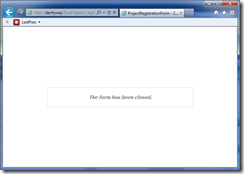
When you close a browser form, either via the Close ribbon button, or via the Close action in rules, when the source parameter isn't specified, you end up on this page:

image

Figure: Silly and really redundant.

If you specify a source parameter, when the user closes the form the browser will redirect to that URL.  This could be the homepage of your site.

With Form Server you can use a few special values such as ~sitecollection or ~site


2. Create a web page that closes itself.

Create a page (wikipage or publishing page), and add this JavaScript magic here.

<script language="javascript" type="text/javascript">
    window.open("", "_self");
    window.close();
</script>


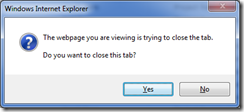
Why is this javascript so strange?  The reason is that if you just call window.close() directly, most browsers will check if the current window was opened from a parent window (such as a popup), and will throw an offensive prompt to the user.

image

Figure: JavaScript close window confirmation - we don't want this


There are a few different ways to trick the browser, the one that I use above basically tells the browser window to open itself, so now the browser thinks it's got a parent (which is itself), and now won't prompt the user for close confirmation.


3. Set the URL parameter


http://server/_layouts/FormServer.aspx?XmlLocation=/ProjectForms/227.xml&Source=~sitecollection/Pages/close.aspx&DefaultItemOpen=1

So now when you close your browser form, it will redirect to our close.aspx page, which will actually close the web browser window (or tab).

10 InfoPath tips for SharePoint developers


Here are 10 nice tips designed for someone that's familiar with SharePoint, but may be new to InfoPath. 

Having brooded over the idea for a while, I decided to quickly write this down, and if there are any questions I can expand some of these key points.


  1. Use InfoPath Designer 2010 to author your forms, even for 2007 forms. The UI is better, design checker gives you more information, and the rules editor supports copy/copy all and paste.
    Note: design checker gives you a lot of warnings and sometimes... they can be ignored.  Which ones are safe and which aren't... is as far as I know, a personal experience thing, think of it as VS.NET warnings.
  2. Design your main context fields first, and then try your best not to change existing fields (add new fields are OK).  Removing or renaming fields often break existing forms that had already been filled out.
  3. Decide upfront whether this is a rich form or a browser form, and set the compatibility level appropriately.  Use the design checker. 
    If you are planning to create hybrid forms that works on both - there's a form option that will allow your code behind to use the Rich Form API but still check the form for Browser Form compatibility.  In this case, always check in your code whether the form is running in the browser before you call those APIs, otherwise you will get UnsupportedExceptions.
  4. If you need to promote InfoPath fields to SharePoint so they appear as columns (and can be used in workflows), you should always use site columns.  You might want to consider always using Content Type as well. 
    It may be tempting to use publish to list - but this creates list fields that are now very hard to manage, and when you realize down the road that you should have used content types, you now have to fix existing list columns and move their data to the site columns.  This always happens
  5. Brush up on your XPath skills well.  InfoPath renders every view via a XSLT transform and the output is actually a HTML page (either for rich form or web forms).  You need to use XPath when you want to start defining rules that are relative to the current field.  Why use rules when you can use code behind?  See next point.
  6. Code behind are powerful, and may look much simpler to a developer, but has deployment considerations.  In 2010, code behind can run either in a farm solution, or via the sandbox user code service.  However, code in the sandbox service sometimes may not run when the service is "busy".  Your best bet is either: deploy code through central administration - if you have access, but then you trip up tip #4 if you haven't been using site columns, or don't use code behind and write your logic using only rules.  You can find detailed InfoPath documentation for developers on MSDN (it may not look like much, but you have functions like get-SharePointServerRootUrl that are just gems hiding)
    Plus, trust me you feel awesome when you can write complex logic using declarative XPath and no C# code. It's like saying yes I could cheat and just use C#, or I can be godlike and do it in XPath.
  7. Copying pictures increases your resource size.  The best way for a repeated picture is to include it as a resource, then use a picture button and set the image to your included resource.  Unfortunately you can't set the image of a picture control.
  8. Export form as Source files, and work with the manifest.xsf.  While I'm pretty certain it is unsupported to tweak the view.xsl files manually by hand, at least you can now put all the component files within a source control and check what has changed using a simple text difference tool.
  9. Learn how to call webservice with Rules.  InfoPath is pretty dumb beyond what's within the form.  Webservices gives you lots of capabilities but only if you know how to call them.  E.g. how to interact with SharePoint users.
  10. Don't use the "can't be blank" option, always create validation rules.  When any validation rules fail, it puts the form into an invalid state and prevents any submit action.  If you have them all defined as validation rules - you can add an additional condition that allows saving E.g. if ForceSave = "0" and "MyField" is empty
    This gives you control over what happens when the user is trying to save, and allow you to disable the checking when you need to.


Leave a comment if you feel this was helpful, or you want more explanation for any of the points.  Thanks for reading.