REMIX thoughts: where HTML5 and Silverlight fits in with SharePoint

Congratulations to Microsoft Australia for pulling off another really great REMIX event. 

My biggest take-home thoughts came from the combined session “HTML5 and Silverlight: a love story” by Tathom Oddie and Justin Taylor.

This is their message, paraphrased:

You need to know your persona [user group], if you are trying to reach as many people as you can, you need to build for reach, go with HTML5, graceful-degradation to Silverlight, and have a download link for the browsers that can’t do either.

On the other hand, for your special users that are heavily using the system, you may want to give them a basic HTML upload capability, but feature-enrichment with additional premier experience (a rich application on the iPhone), or better upload experience with Silverlight, and even live recording capabilities. For this persona, you can convince them that they can have a much better experience if they download Silverlight.

(Followed by nice singing from Justin).


There’s an awful lot to think about going forward.  I love Silverlight and the possibilities you can do with it, at the same time it is true that to reach your audience you need to come to their level.

So a compromise, I suggest:

For SharePoint 2010:

  • For the consumer, where the user wants to see SharePoint content but not really contributing
    • Aim for HTML/HTML5 – this enables most features should someone in your board of directors want to view something in their iPad. 
    • Gracefully degrade to Silverlight, because many people in the organization may not be using IE9, Silverlight at least is easily available on Windows platforms and works with Windows XP and IE6
  • For the content creator, where the user may be using a lot of rich applications to interact with SharePoint
    • Start with the basic HTML (not HTML5).
    • Feature-enrich with Silverlight – your users already have the environment, it is easier to develop in, and has a significantly richer API
    • Silverlight 5 with Trusted Mode in Browser will enable browser-Office scenarios allowing browser to interact with Office client applications
InfoPath 2010 - embed HTML for rich and web forms

Do we like the SharePoint content editor web part?  Yes!

What if there's a way to add your own HTML in your InfoPath form, and have it appear for both web forms and rich (InfoPath Filler) forms?

Here are the quick steps:

  1. Create an external XML file to store the HTML we need
  2. Add the external XML file as a secondary data source for the InfoPath form
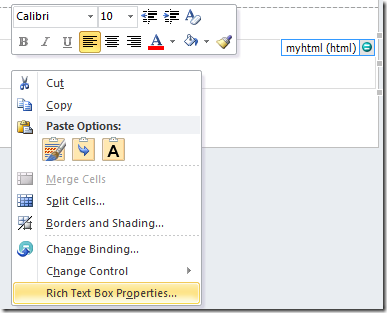
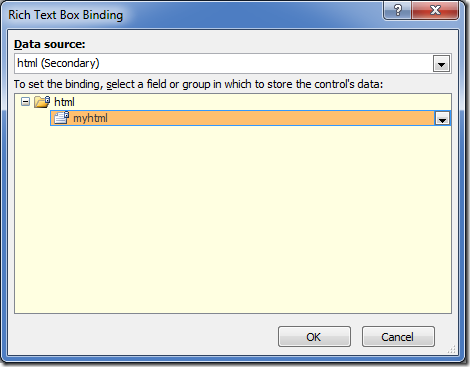
  3. Use the Rich Text control and bind the result from the secondary data source
  4. Using resources in the form (images, CSS)
    1. Tricks for InfoPath Filler Rich Form
    2. Tricks for InfoPath Browser Form
  5. Adding your own CSS
  6. Notes
    1. Script tag doesn't work (stripped from rich text control).
    2. Steps to refresh HTML content of the XML resource


1. Create the XML file

This is documented in MSDN Inserting line breaks into text using Rules 


This is pretty much the same thing - I'm inserting a namespace here so InfoPath knows this is a HTML block of text.

<?xml version="1.0" encoding="utf-8"?>
<html>
  <myhtml>
    <b xmlns="http://www.w3.org/1999/xhtml" >A Bold Hello</b> World
  </myhtml>
</html>

Save it as html.xml


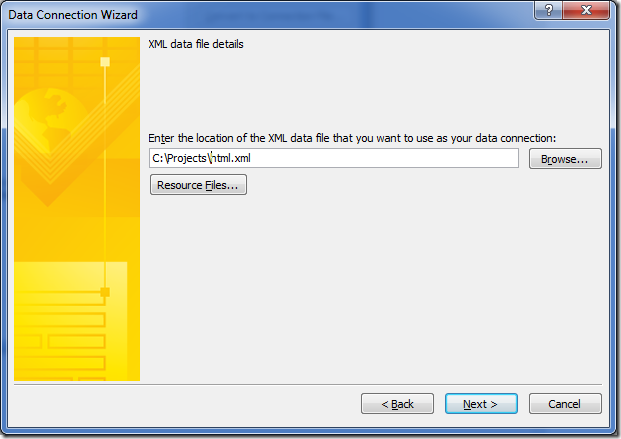
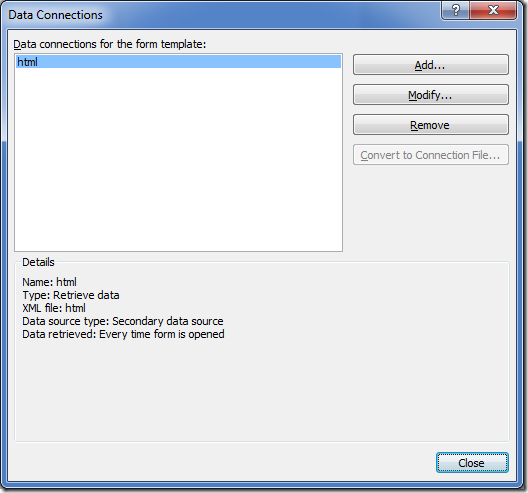
2. Add the XML file as a secondary data source

image

Figure: Add a secondary XML document

image


3. Use the Rich Text control and bind the result from the secondary data source


Remember to change the Rich Text Box to Read-Only

image

Figure: Add a new rich text box, then change it's binding

image

Figure: Bind it to the secondary data source


Run it in Preview (InfoPath Filler)

image

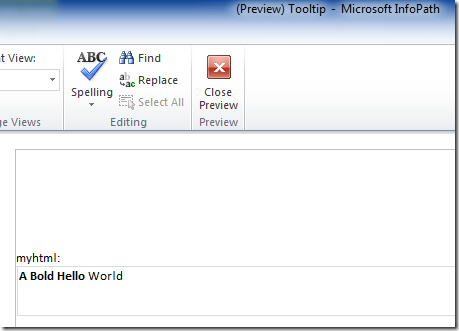
Figure: InfoPath Filler - looks good

Publish and run in browser (Browser Form):

image

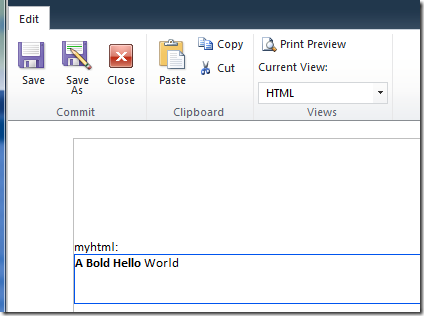
Figure: InfoPath Form Server - also looks good


4. Use Image from form resources


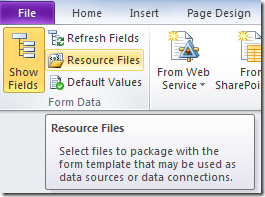
Let's go one step further and play with resources such as images.  Add an image into the form's resource files

image

Figure: Go to resource files

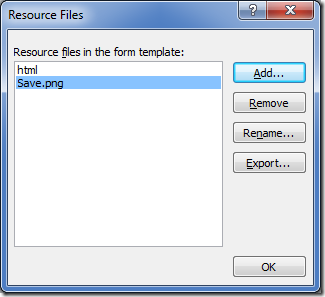
image

Figure: Add a picture "Save.png"


Modify the HTML to refer to this image. 

<?xml version="1.0" encoding="utf-8"?>
<html>
  <myhtml>
    <b xmlns="http://www.w3.org/1999/xhtml">A Bold Hello</b> World
   <img xmlns="http://www.w3.org/1999/xhtml" src="Save.png" border="1" />
  </myhtml>
</html>

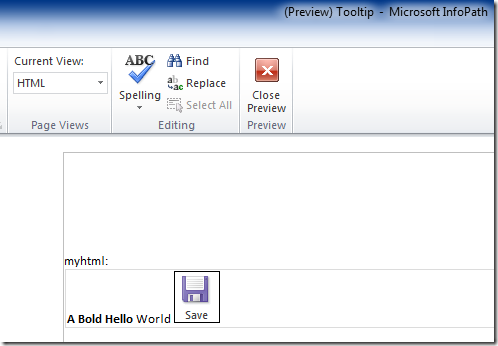
Preview this:

image

Figure: works great in InfoPath Filler


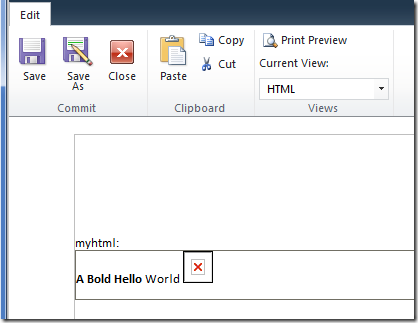
Publish and view in Form Server:

image

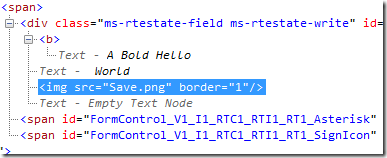
Figure: Doesn't work so well in Browser Form


image

Figure: Raw HTML


4.1 Using form resources in Form Server

Let's see how does the Form Server handle images.


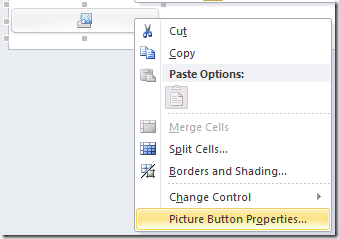
image

Figure: Create a picture button


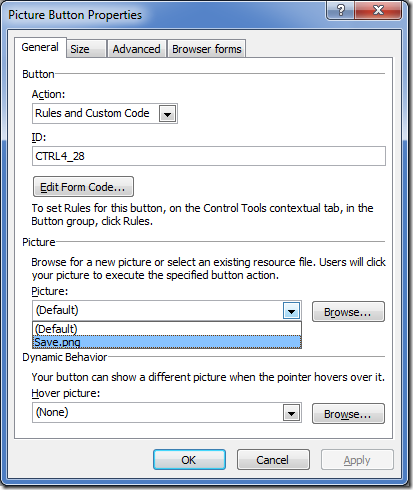
image

Figure: Set the Picture to the resource


Publish, then check HTML source in the browser for the new picture:

<img style="width: 100%; height: 50px; position: static;" alt="" src=http://server/_layouts/FormResource.aspx?solutionId=XXX&solutionFile=Save.png hoverSrc=""/>

So the format is:

/_layouts/FormResource.aspx?solutionId=xxx&solutionFile=Save.png


Update this back in our HTML file.

<?xml version="1.0" encoding="utf-8"?>
<html>
  <myhtml>
    <b xmlns="http://www.w3.org/1999/xhtml">A Bold Hello</b> World
    <img xmlns="http://www.w3.org/1999/xhtml" src="Save.png" border="1" />
    <img xmlns="http://www.w3.org/1999/xhtml" src="/_layouts/FormResource.aspx?solutionId=XXX&amp;solutionFile=Save.png" />

  </myhtml>
</html>

IMPORTANT: Remember to escape the & in the query parameter to &amp;

Publish to Form Server again:

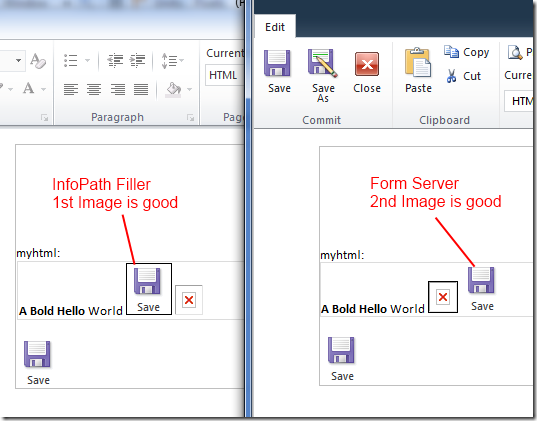
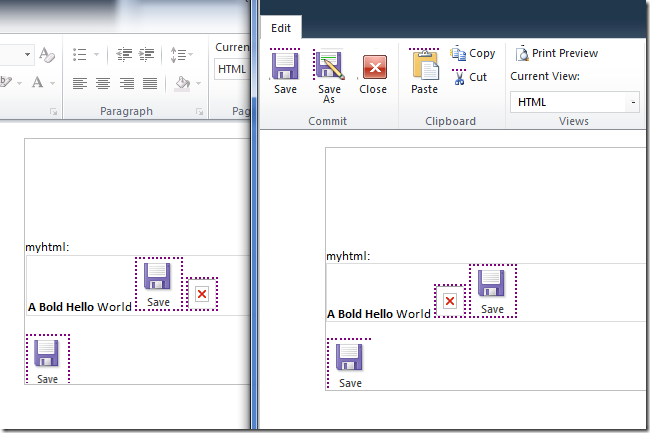
Compare the same form published on two different clients:

image


5. Add your own CSS

Let's try some other tags, this is the STYLE tag:

<?xml version="1.0" encoding="utf-8"?>
<html>
  <myhtml>

    <style xmlns="http://www.w3.org/1999/xhtml" >
       img {
           border: dotted 2px purple !important;
       }
    </style>

    <b xmlns="http://www.w3.org/1999/xhtml">A Bold Hello</b> World
    <img xmlns="http://www.w3.org/1999/xhtml" src="Save.png" />
    <img xmlns="http://www.w3.org/1999/xhtml" src="/_layouts/FormResource.aspx?solutionId=XXX&amp;solutionFile=Save.png" />

  </myhtml>
</html>

image


Purple dotted borders.  Notice how it is also affecting the Ribbon in the Browser Form.

Use this to your advantage ;-)  


6. Notes

  1. Firstly, <SCRIPT> won't work.  The rich text control strips them out.
  2. Refreshing the XML file when you update it is a bit of a painful process.  This is just the way it is with secondary data sources in SharePoint.  If you are using offline files, you need to go through the wizard again to overwrite the previous connection (and refresh your offline cache).  But if you are storing that XML file in SharePoint - you can just publish a new version there and tell InfoPath not to cache it.

InfoPath FormServer - initial view and parameters via URL


Form Server provides quite a few very interesting Query parameters to allow us to influence how it will behave when rendering the form in browser.

The MSDN article is awesome and a great resource: How to: Use Query Parameters to Invoke Browser-Enabled InfoPath Forms

A really useful feature would be to allow the Query Parameter to control the initial view that the form opens in.  This allows us to control based on various stages of the form to render to different users different form "links" that takes them to different parts of the form.


Code Behind

MSDN has another great resource: InfoPath InputParameters Property

So if we add the InputParameters to the Form's load event, we can now specify the default view to open in.


public void FormEvents_Loading(object sender, LoadingEventArgs e)
{
    try
    {
        string view = "";

        if (e.InputParameters.ContainsKey("View"))
        {
            view = e.InputParameters["View"];
            e.SetDefaultView(view);
        }

    }
    catch (Exception ex)
    {
        SetValue("/my:myFields/my:FormSettings/my:ErrorLog", ex.Message + ex.StackTrace);
    }

}


Form Server URL

New Forms

http://server/_layouts/FormServer.aspx?XsnLocation=/FormServerTemplates/ProjectForm.xsn&SaveLocation=/Projects&Source=/Projects&OpenIn=Browser&View=Debug

Form Server URL query parameters not recognized by Form Server are passed to the form as Input Parameters

Existing Forms

http://server/_layouts/FormServer.aspx?XmlLocation=/Projects/413.xml&Source=/Projects&OpenIn=Browser&View=Debug


ViewInfos.SwitchView is not good

If you try to use ViewInfos.SwitchView - you'll probably get this error:

InfoPath cannot execute any view-related object model calls. The view is not ready

Hence, use the SetDefaultView method on the Load event args.


That's all, have fun!

Rich and Reach - plenty of other successful ways


Having established that you need Silverlight to have a richer UX, let's look at how you can support other platforms.

Cross-platform compilers

Firstly, let's get this out of the way.  You can use cross-platform-compilers and achieve a great result.  Your limitation here is time.  But it is still far cheaper than writing from scratch.


Provide a Public API

Silverlight requires a service based API to talk to the server and get stuff done.  If you have done this already, why not clean it up and publish your API's and let the public write the application for you?

It worked for Twitter, FourSquare.

Take a game like World of Warcraft, or a gaming service like Xbox Live.  Even with it's super slick built-in UI, there are always people who want the raw data feed, so they can parse it, make charts, compare different people, catch cheaters etc. etc.


Write the basic minimum

I see the top priorities in this order

  1. Build a REST based service tier
  2. Build a rich client application with Silverlight
  3. (Optional) Build a AJAX-based fall-back browser experience
  4. (Optional) Build targeted rich applications for iOS and Android
  5. (Optional) Reach out to the community and see if there are people out there who would like to build a richer app for you


Does your "Reach" include "Support"

I don't really know if people's definition of "Reach" includes support on that browser.  Or whether it just means "It will probably work".  Google Chrome updates every week - do we want to support it properly?  Or do we just assume "it will probably work"?  Do you support the Google Chromium beta builds?

In my opinion, it might be better to support targeted environments rather than "any HTML5-compatible browser".  The browser scenario seems somewhat risky and open-ended.

I like the published API idea because that's the line where your support contract ends.  You support the Silverlight client and the REST service (which you need to do anyway for your Silverlight client to work).

If you build more than two clients (Silverlight, unit-tests, or AJAX web frontend) - these effectively prove whether a problem is at the client level, or at the service level.

SharePoint - Improve EditView Column Reordering with JQuery

This is a fun exercise to apply some simple Javascript DOM manipulation with JQuery to improve the reordering columns experience in SharePoint's Edit View.


Problem

Exhibit A:

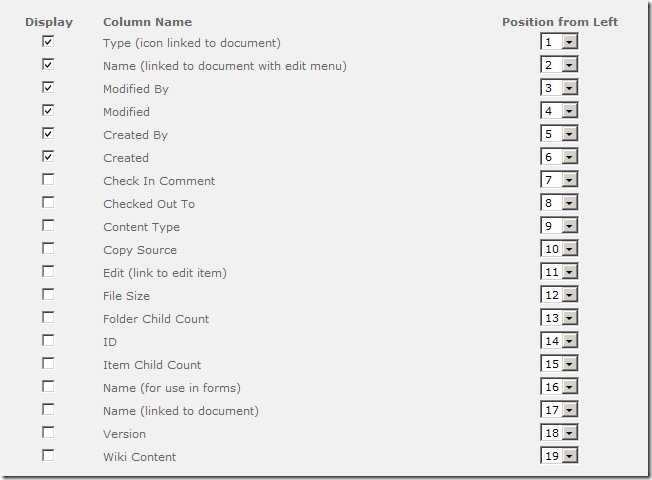
image

Figure: SharePoint OOTB Edit View | Columns ordering

We should be familiar with SharePoint's out of the box edit view columns screen.  Lots of checkboxes and lots of drop down lists.  Checkboxes are fine, but what happens when you try to re-order?

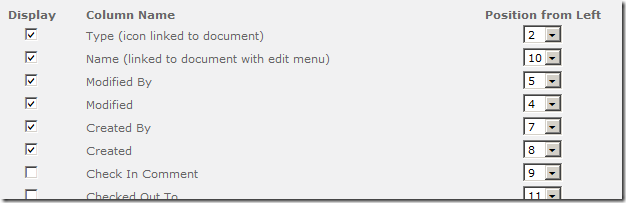
image

Figure: SharePoint OOTB javascript renumbers the position ordering, but leaves it in an unreadable mess

Out of the box, SharePoint does attempt to fix the positioning numbers so there are no duplicates.  Unfortunately, it makes the list into a crazy unreadable mess.


Improvement

The proposed fix is actually quite simple:

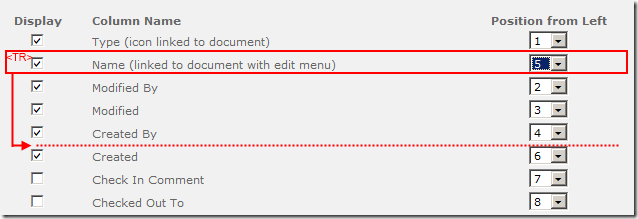
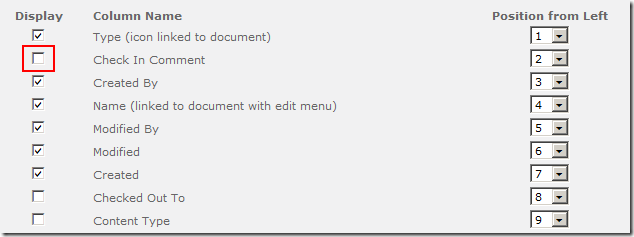
  1. After the SharePoint javascript has re-numbered the order, in this case changed 2 to 5, and renumbered 3 (to 2), 4 (to 3), and 5 (to 4).
  2. Run our javascript to pick up the entire 2nd (now number 5) TR row, and move it between the 4th and the 6th row.

image

Figure: This magic diagram explains what I want to do!

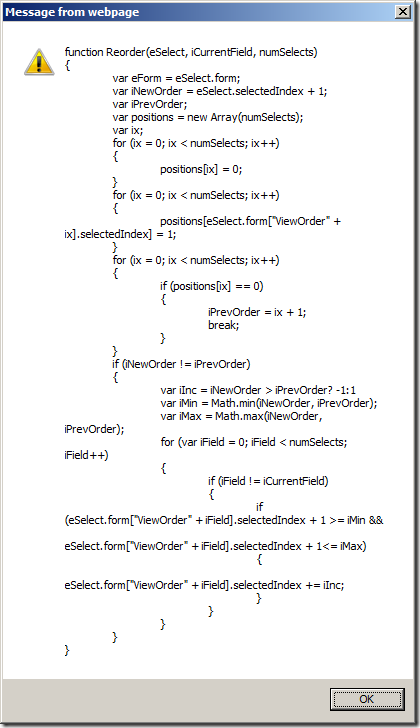
The SharePoint Javascript function is called Reorder.  IE will tell you what it does.

image

Figure: The Reorder javascript function

In my case, I don't really care what it does, I do care that the first argument is the select control.  I'll need this later.

There are two functions in my Javascript.


Improved Javascript - Rewiring Reorder

First, we need to re-wire the existing Reorder function and add our function after it.  I do this via a function wrapper.


$(function(){
    // verify we're on the right page
    if ($("#tbodyViewColumns").length == 0 || typeof(Reorder) != "function") {
        return;   
    }
    // rewire SharePoint OOTB Reorder javascript function
    var SP_Reorder = Reorder;
    Reorder = function(e,i, n){   
        SP_Reorder(e,i,n);       
        JL_ViewColumns_Reorder($(e));
    };
});


  • Check the page contains a tbodyViewColumns element, and check the Reorder function exists.
  • Set the Reorder function to a variable, then create a new function for Reorder and call the old one first, then call our function JL_ViewColumns_Reorder.
  • I pass in the JQuery-wrapped current select element  $(e)


Improved Javascript - Reorder

This is my JQuery move function, takes an argument of the current select element.


function JL_ViewColumns_Reorder($select){

    var order = $("option:selected", $select).text();
    var $tr = $select.parents("tr:first");
   
    if (order == 1) {
        // move before 2
        var $sibling = $("tr:has( td.ms-authoringcontrols select option:selected[value^=2_] )", $tr.parents("table:first"));
        $sibling.before($tr);
    }
    else {
        // move behind previous sibling
        var $sibling = $("tr:has( td.ms-authoringcontrols select option:selected[value^=" + (order-1) + "_] )", $tr.parents("table:first"));
        $sibling.after($tr);
    }
}

  • Find the current position order (since our function runs after the re-numbering, this is the new order)
  • Find the current row
  • If we're 1st, then find the 2nd row and move before
  • Otherwise, find the previous row and move after
  • JQuery selectors are detailed here: http://api.jquery.com/category/selectors/


Summary

  1. Reference JQuery
  2. Add this one file https://static1.squarespace.com/static/5527bff2e4b0b430660b0d10/5527c30de4b030eeeef09715/5527c30fe4b030eeeef09f45/1304952950957/JL_ViewColumns_Reorder.js
  3. You should reference both in your masterpage since the EditView page is a system page

Enjoy!

image

Figure: Automatically moved after renumbering.  Note, I don't tick the Display checkbox automatically.