Script and Link in SharePoint CQWP XSL Style Sheet

Help!  I added some script and link tags to my XSL style sheet for my Content Query Web Part, and now SharePoint has stopped working!


Problem

The main problem is not very obvious, but it's basically that SharePoint is spitting out incorrect HTML, that your browser can't render - so your browser starts guessing what the page should look like.  And since SharePoint 2010 relies heavily on javascript based client side objects, the ribbons, actions, web part zones all start to collapse once the page itself isn't rendering correctly.

When you type in an XSL (XML) file:

<script src="/Style Library/js/myscript.js" ></script>

SharePoint processes this as correct XML, but then proceeds to output:

<script src="/Style Library/js/myscript.js" />

Which is also correct XML, but is incorrect HTML!

The same happens for a link to CSS

<link rel="stypesheet" href="/Style Library/css/mycss.css" ></link> becomes <link rel="stypesheet" href="/Style Library/css/mycss.css" />


You wanted:

<script></script>
<script></script>
<link></link>
<div class="mycss">
</div>

SharePoint produced:

<script />
<script />
<link />
<div class="mycss">
</div>

Your browser doesn't understand <script />, so it begins guessing what the page should look like:
<script>
<script>
<link>
<div class="mycss"></div>

Result:

The DOM has just blown up.


Fix

When in doubt, always use the <xsl:value-of> in your XSL

<xsl:value-of disable-output-escaping="yes" 
select="string('&lt;link rel=&quot;stylesheet&quot; href=&quot;/Style Library/mycss.css&quot;&gt;&lt;/link&gt;')" /> <xsl:value-of disable-output-escaping="yes"
select="string('&lt;script src=&quot;/Style Library/myscript.js&quot;&gt;&lt;/script&gt;')" />
You will need to escape the characters " [&quot;]  < [&lt;] and > [&gt;]
 

SharePoint 2010 loads hidden Silverlight?

A while back we had an email conversation where there was a Silverlight plugin crash on one of our publishing pages, this happens occasionally while running on Chrome, except we weren't using Silverlight on that page.

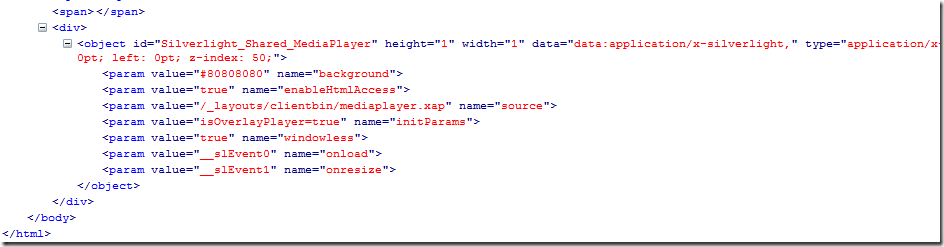
This is something you should check.  If you are using the Content Query Web Part, chances are it is placing a Silverlight control hidden on your webpage, even if you are not using it.

image

Figure: Firebug picked up the Silverlight object

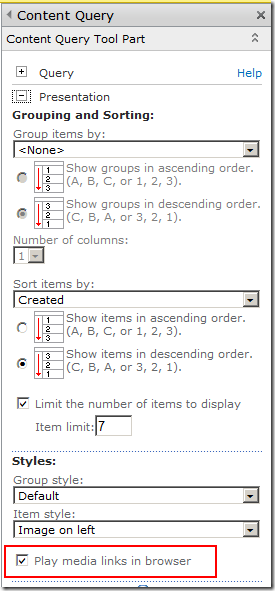
The way to confirm this is to check your Content Query Web Part, the "Play media links in browser" is a new feature in SharePoint 2010.  If your content query webpart was showing data from a media library, you can play the movie files directly within the browser, via the hidden Silverlight media player.

image

FIgure: Content Query properties - Play media links in browser

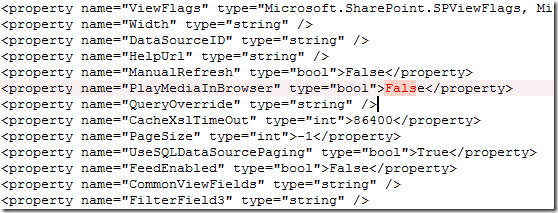
You can also turn this off in your .webpart file

image

Figure: Webpart file property - PlayMediaInBrowser

Setting up a draft save location for InfoPath web forms


This is a quick description of how you can set up a draft Forms Library for letting your users save their InfoPath web forms quickly.

  1. Create an InfoPath 2010 form, set compatibility level to web browser forms
  2. Create an external secondary connection for submitting to your primary Form library.  /My Project/My Forms/
  3. Add some required fields and set them to "Can't be blank"
  4. Add a button to call the submit connection. 
  5. Publish the form to the forms library.
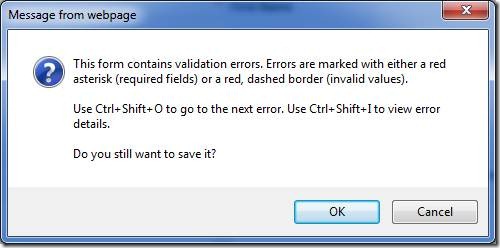
  6. When you click Submit - the submit will fail - because you have fields that has failed the validation.

Because you probably have workflows listening on the Form library, to keep things simple, you should create a second Form library for draft forms.

  1. Create a second Form library. /My Project/My Draft Forms/
  2. In Form Options, enable Save or Save As for web browser forms
  3. Publish the form template again.

Trick

The trick is to provide Forms Server the hint that /My Draft Forms/ is the destination for temporary draft saves.

The MSDN article is here: http://msdn.microsoft.com/en-us/library/ms772417.aspx

The URL for new forms should be:

https://server/applications/My Project/_layouts/FormServer.aspx?XsnLocation=~sitecollection/My Project/My Forms/Forms/template.xsn&SaveLocation=~sitecollection/My Project/My Draft Forms&Source=~sitecollection/My Project/My Forms&DefaultItemOpen=1

This URL uses /My Project/My Draft Forms as the SaveLocation.

Fire up the web form from this URL

Try saving the form from the save button on the ribbon.

clip_image002

Figure: Forms Server asks if you want to skip the error and save.

image

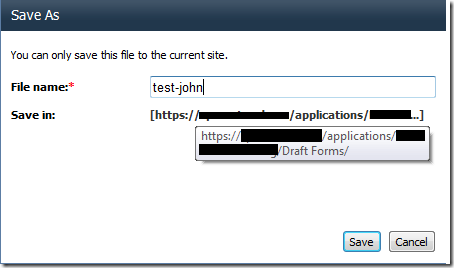
Figure: Forms Server asks the user to give a name to the draft form.

image

Figure: Forms saved to the separate Draft forms library.


Result


  1. Creating new form using the modified URL.
    1. Can save to /My Draft Forms/ - will be prompted form name
    2. Can submit to /My Forms/
  2. Opening draft form from /My Draft Forms/
    1. Can save back to /My Draft Forms/
    2. Can submit to /My Forms/
    3. CON: Leaves old draft form file
  3. Opening existing submitted form from /My Forms/
    1. Can save to /My Forms/

Adding a warm-up step to your SharePoint project deploy action


VS.NET 2010 allows a lot of awesome control over the exact steps that occurs when you deploy your project to your development environment.

image

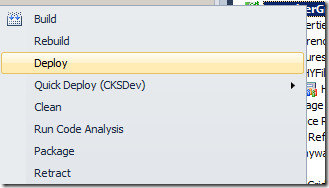
Figure: VS.NET 2010 Deploy


When you are deploying farm solutions however, it does an IIS Reset, which means when VS.NET says it's done, and you go into your browser to test the site, it sits there for a few minutes warming up.  Sad smile

Fortunately, VS.NET is very extensible, and the community is awesome and has already added many useful extensions.

Grab CKS DEV

To fix this, first grab CKS extensions here: http://cksdev.codeplex.com/


SharePoint Project Properties | SharePoint

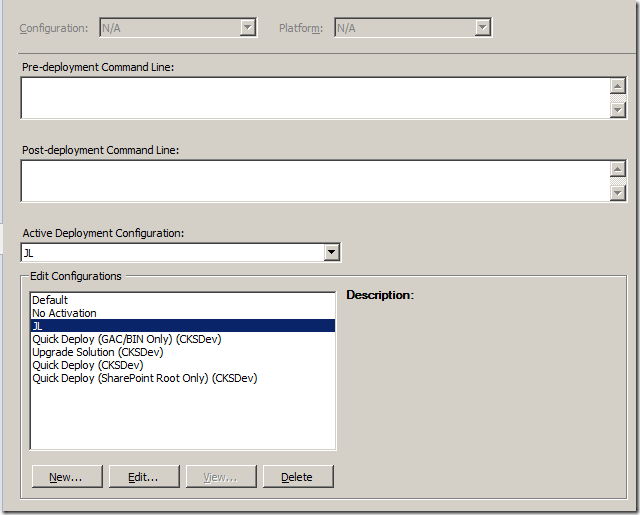
You can't edit any of the default configurations, so make your own and add the actions you want.

image

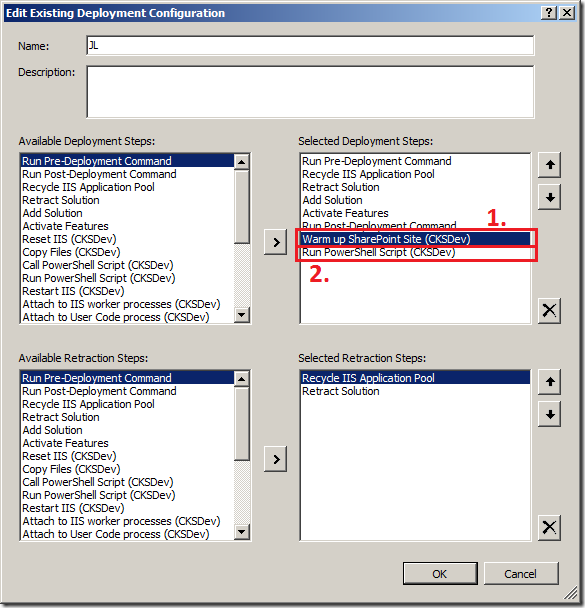
CKS provides a deployment step "Warm up SharePoint Site (CKSDev)" which will send a request to warm up the SharePoint site that the project deploys to.  (see #1 below)

image

The problem with the CKSDev warm-up step is that the action doesn't actually wait for the site to tell us it's ready, so VS.NET will say "Done", but when you open the browser, it's still not ready Sad smile

So we add another CKS step "Run PowerShell Script (CKSDev)".  See #2 above.


Using a PowerShell step to make sure it is REALLY READY

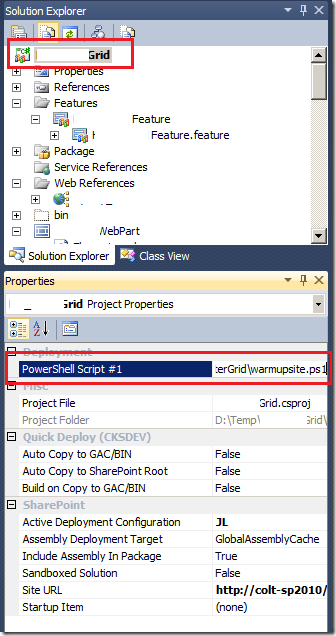
You then need to look at the properties of the project to see a new property under Deployment. 

Point that to a ps1 file in your project directory.

image


The contents of the ps1 file can be very simple, in 3 lines:


$WebClient = New-Object System.Net.WebClient
$WebClient.UseDefaultCredentials = $true
$Results = $WebClient.DownloadString("http://colt-sp2010/sites/Home/SitePages/default.aspx")

When you deploy now, it will run until the PowerShell step returns.  Smile

Activate Features:
  Activating feature 'Grid Feature' ...
Run Post-Deployment Command:
  Skipping deployment step because a post-deployment command is not specified.
Warm up SharePoint Site (CKSDev):
Run PowerShell Script (CKSDev):
  --Executing PowerShell Script #1 'D:\Temp\Grid\warmupsite.ps1'...
 
  --Script 'D:\Temp\Grid\warmupsite.ps1' successfully executed
========== Build: 1 succeeded or up-to-date, 0 failed, 0 skipped ==========
========== Deploy: 1 succeeded, 0 failed, 0 skipped ==========