SharePoint 2010 - Configuring List Item Permissions with Workflow
/The client had a pretty "simple" situation where:
- We want to create a Request list where different people in the company can add requests, but assign it to a department.
- Once created, only members in that department has access to this request item
PERMISSION GROUPS
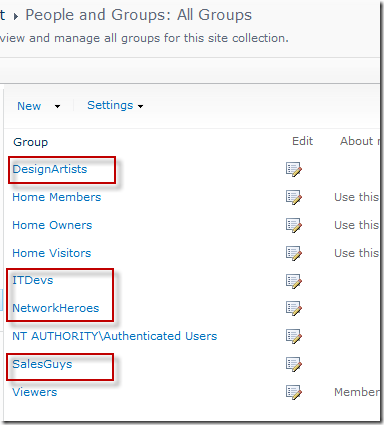
You can use Active Directory groups here as well. Here are my four security groups
DEPARTMENT LIST
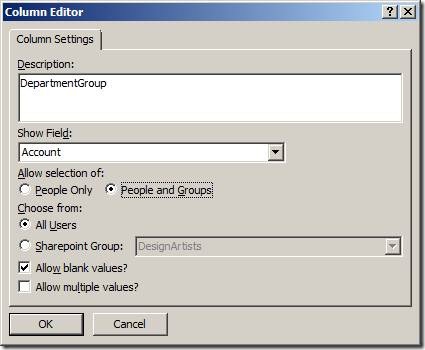
I plan to use re-usable workflows later to configure the list item permissions. So I need to create a few site columns, here's the first one DepartmentGroup. This is basically a People or Groups field.
I create a list for the department, thus:
![clip_image002[7]](https://static1.squarespace.com/static/5527bff2e4b0b430660b0d10/5527c30de4b030eeeef09715/5527c30fe4b030eeeef0a077/1279024485417/WindowsLiveWriter-SharePoint2010ConfiguringListItemPermiss_136A6- "clip_image002[7]")
REQUEST LIST
Here's the second site column. This is a lookup column to the Department list. I'm bringing over the ID field as an additional field.
![clip_image002[9]](https://static1.squarespace.com/static/5527bff2e4b0b430660b0d10/5527c30de4b030eeeef09715/5527c30fe4b030eeeef0a079/1279024489717/WindowsLiveWriter-SharePoint2010ConfiguringListItemPermiss_136A6- "clip_image002[9]")
Add a few records:
![clip_image002[11]](https://static1.squarespace.com/static/5527bff2e4b0b430660b0d10/5527c30de4b030eeeef09715/5527c30fe4b030eeeef0a07b/1279024493947/WindowsLiveWriter-SharePoint2010ConfiguringListItemPermiss_136A6- "clip_image002[11]")
![clip_image002[13]](https://static1.squarespace.com/static/5527bff2e4b0b430660b0d10/5527c30de4b030eeeef09715/5527c30fe4b030eeeef0a07d/1279024496817/WindowsLiveWriter-SharePoint2010ConfiguringListItemPermiss_136A6- "clip_image002[13]")
REMOVE LIST PERMISSIONS
Stop inheriting permissions from parent (site), and do a bit of house cleaning and remove the unnecessary groups.
LET'S WORK ON THAT WORKFLOW
The idea of the workflow is that:
- Whenever an item is updated
- Look up the group based on the selected Department (via the additional ID field)
- Assign item-level security to the list item
- Remove permissions to modify the item, and grant the department group permission to view and modify that request.
Create a re-usable workflow. Target any content type.
We'll need the lookup site column, so associate that
![clip_image002[15]](https://static1.squarespace.com/static/5527bff2e4b0b430660b0d10/5527c30de4b030eeeef09715/5527c30fe4b030eeeef0a07f/1279024501057/WindowsLiveWriter-SharePoint2010ConfiguringListItemPermiss_136A6- "clip_image002[15]")
The permissions steps need to be run as impersonated steps. The impersonated steps can not be mixed with the normal steps (such as Step 1)
![clip_image002[17]](https://static1.squarespace.com/static/5527bff2e4b0b430660b0d10/5527c30de4b030eeeef09715/5527c30fe4b030eeeef0a081/1279024505085/WindowsLiveWriter-SharePoint2010ConfiguringListItemPermiss_136A6- "clip_image002[17]")
Remove (unused) Step 1, and add "Replace permission" action
![clip_image002[19]](https://static1.squarespace.com/static/5527bff2e4b0b430660b0d10/5527c30de4b030eeeef09715/5527c30fe4b030eeeef0a083/1279024509098/WindowsLiveWriter-SharePoint2010ConfiguringListItemPermiss_136A6- "clip_image002[19]")
Start with the second parameter which is the easier one. Click on "this list" and select Current Item
![clip_image002[21]](https://static1.squarespace.com/static/5527bff2e4b0b430660b0d10/5527c30de4b030eeeef09715/5527c30fe4b030eeeef0a085/1279024513427/WindowsLiveWriter-SharePoint2010ConfiguringListItemPermiss_136A6- "clip_image002[21]")
![clip_image002[23]](https://static1.squarespace.com/static/5527bff2e4b0b430660b0d10/5527c30de4b030eeeef09715/5527c30fe4b030eeeef0a087/1279024517593/WindowsLiveWriter-SharePoint2010ConfiguringListItemPermiss_136A6- "clip_image002[23]")
Click on "these permissions" and we want Contribute and Read permissions
![clip_image002[25]](https://static1.squarespace.com/static/5527bff2e4b0b430660b0d10/5527c30de4b030eeeef09715/5527c30fe4b030eeeef0a089/1279024522043/WindowsLiveWriter-SharePoint2010ConfiguringListItemPermiss_136A6- "clip_image002[25]")
Click on "Choose" and set who we'll be granting Contribute/Read to
![clip_image002[29]](https://static1.squarespace.com/static/5527bff2e4b0b430660b0d10/5527c30de4b030eeeef09715/5527c30fe4b030eeeef0a08b/1279024526977/WindowsLiveWriter-SharePoint2010ConfiguringListItemPermiss_136A6- "clip_image002[29]")
Select "Workflow Lookup for a User…" and click Add
We want to do a look up on the Department list.
![clip_image002[31]](https://static1.squarespace.com/static/5527bff2e4b0b430660b0d10/5527c30de4b030eeeef09715/5527c30fe4b030eeeef0a08d/1279024531607/WindowsLiveWriter-SharePoint2010ConfiguringListItemPermiss_136A6- "clip_image002[31]")
The field we want is DepartmentGroup (our Person and Group site column). Return the field as Login Name
Set the filter Field below to ID
![clip_image002[33]](https://static1.squarespace.com/static/5527bff2e4b0b430660b0d10/5527c30de4b030eeeef09715/5527c30fe4b030eeeef0a08f/1279024536013/WindowsLiveWriter-SharePoint2010ConfiguringListItemPermiss_136A6- "clip_image002[33]")
Set the filter Value field to Current Item.Department:ID
(You can also use the DepartmentLookup field here, just return it as Integer)
![clip_image002[35]](https://static1.squarespace.com/static/5527bff2e4b0b430660b0d10/5527c30de4b030eeeef09715/5527c30fe4b030eeeef0a091/1279024540323/WindowsLiveWriter-SharePoint2010ConfiguringListItemPermiss_136A6- "clip_image002[35]")
Final result:
![clip_image002[37]](https://static1.squarespace.com/static/5527bff2e4b0b430660b0d10/5527c30de4b030eeeef09715/5527c30fe4b030eeeef0a093/1279024544867/WindowsLiveWriter-SharePoint2010ConfiguringListItemPermiss_136A6- "clip_image002[37]")
OK everything. Remember to save and publish
![clip_image002[39]](https://static1.squarespace.com/static/5527bff2e4b0b430660b0d10/5527c30de4b030eeeef09715/5527c30fe4b030eeeef0a095/1279024547833/WindowsLiveWriter-SharePoint2010ConfiguringListItemPermiss_136A6- "clip_image002[39]")
Go back to SharePoint list
Configure the workflow and make sure it runs when a list item is created or modified
![clip_image002[41]](https://static1.squarespace.com/static/5527bff2e4b0b430660b0d10/5527c30de4b030eeeef09715/5527c30fe4b030eeeef0a097/1279024552533/WindowsLiveWriter-SharePoint2010ConfiguringListItemPermiss_136A6- "clip_image002[41]")
VERIFY RESULTS
Check the permission of our first request (before the workflow)
![clip_image002[43]](https://static1.squarespace.com/static/5527bff2e4b0b430660b0d10/5527c30de4b030eeeef09715/5527c30fe4b030eeeef0a099/1279024556024/WindowsLiveWriter-SharePoint2010ConfiguringListItemPermiss_136A6- "clip_image002[43]")
It is inheriting from list. Nothing special.
![clip_image002[45]](https://static1.squarespace.com/static/5527bff2e4b0b430660b0d10/5527c30de4b030eeeef09715/5527c30fe4b030eeeef0a09b/1279024560357/WindowsLiveWriter-SharePoint2010ConfiguringListItemPermiss_136A6- "clip_image002[45]")
Create a new request for our Network department - see the workflow has completed
![clip_image002[47]](https://static1.squarespace.com/static/5527bff2e4b0b430660b0d10/5527c30de4b030eeeef09715/5527c30fe4b030eeeef0a09d/1279024563877/WindowsLiveWriter-SharePoint2010ConfiguringListItemPermiss_136A6- "clip_image002[47]")
Check its permissions
![clip_image002[49]](https://static1.squarespace.com/static/5527bff2e4b0b430660b0d10/5527c30de4b030eeeef09715/5527c30fe4b030eeeef0a09f/1279024567098/WindowsLiveWriter-SharePoint2010ConfiguringListItemPermiss_136A6- "clip_image002[49]")
"NetworkHeroes" has been assigned "Contribute" and "Read" permissions to the list item - everyone else has been stripped out.
The List Item has also stopped inheriting permissions from the parent list.
SUMMARY
So the solution works and is relatively elegant. Though the client mocks me and says it was so much more easier in Lotus Notes :-(
The following features in SharePoint 2010 makes this example a little bit cleaner than with SharePoint 2007:
- "Additional Fields"
- Impersonation Step
- Re-usable Workflows
- Replace Permissions Action