InfoPath - creating sequential filenames without an extra column

Avid InfoPath form creators will no doubt know the trick to create sequential numbers for use in filenames.  The steps typically includes:

  1. Create a field FileName, create another field SeqNo.
  2. Publish the form to SharePoint Form library, and promote the column for SeqNo
  3. Create a view, use REST data connection or use owssrv.dll to get data from this Form library, in particular we want to know the SeqNo
  4. Prior to save, check that the FileName is not blank, query the data connection to find the latest SeqNo from the forms library.  Using max()
  5. Add one to this number, store it in SeqNo
  6. Create FileName by concatenating some prefix with SeqNo:  MyFile-004
  7. Submit through a data connection back to the Form library with the FileName


This blog post is NOT about using a second column

We will work out the next number completely without promoting any fields.

WHY, you may ask.  Well, because it's FUN!

And we get to play with a modified double-eval trick as a bonus!


Set up

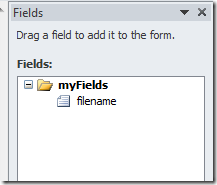
  • Create a basic form, create a field filename
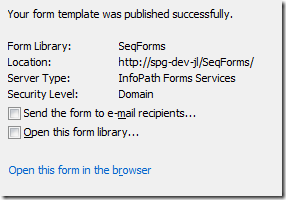
  • Publish to SharePoint Form library

image


image


Secondary data source for querying existing filenames

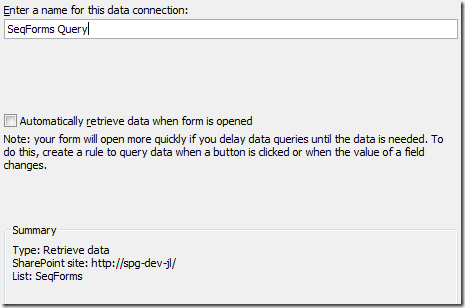
Create a SharePoint connection to the Form library.

Here I'm creating a SharePoint List data connection.  The old trick with owssrv.dll will work as well.
image


Secondary data source for submit (to save forms)

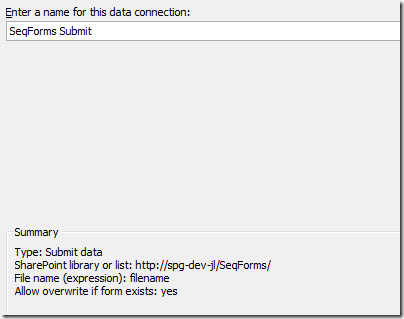
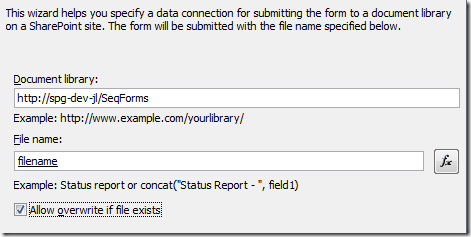
Another SharePoint connection to the Form library, this one is for submit.  Allow overwrite.  Also, use the filename field for saving.
image

image

Save button

Create a save button.  When the user clicks save, we're going to create a new filename with a sequential number, then call the submit data connection.

Our secondary data looks like this:
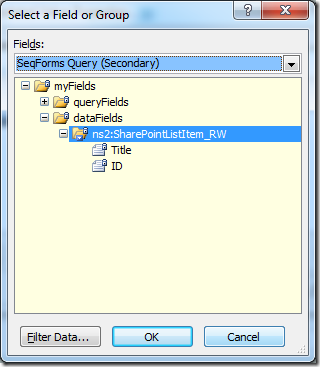
image

I drop this onto the form to show what is the data in this data connection.
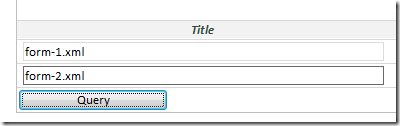
 

image


What we want to do, is to take the names, strip out all the non-numeric characters, and then perform a max() operation to find the largest number.


Stripping characters with TRANSLATE

InfoPath has a useful function translate("abc", "ABC") it replaces the first set of characters with the second set.  If your second set is empty, like this: translate("abc", "") you can essentially perform a character removal.

And now, I can use my translate function like this:

image

image

Run the form in preview: we are now left with just the the numbers in the filename.  Good.


Double-eval

Back to our list of existing form names. 
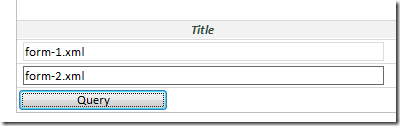
image

The double-eval trick essentially gives us a way to do a for-each parse through a repeating section in InfoPath.

The basic form this is:
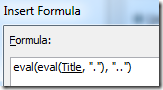
image

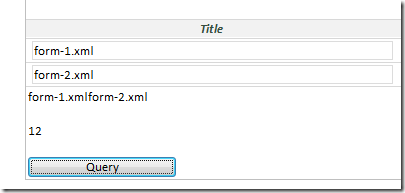
The inner-eval, runs "." (current), and the outer-eval, runs ".." (parent).   Combined, this gives us a concatenated string of all the Title
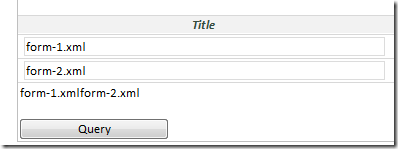
image


Combine both the translate strip, and the double-eval, we get:

image


Preview:

image


Finally, replace the outer-eval with a max function, and prefix a 0 (for filenames that don't have numbers).

image

max(eval(Title, 'concat("0", translate(., "ABCDEFGHIJKLMNOPQRSTUVWXYZabcdefghijklmnopqrstuvwxyz -+,_!.", ""))'))


Preview result:
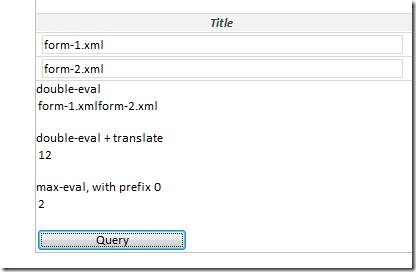
image


So my filename function is this:

concat("form-", max(eval(Title, 'concat("0", translate(., "ABCDEFGHIJKLMNOPQRSTUVWXYZabcdefghijklmnopqrstuvwxyz -+,_!.", ""))')) + 1 )
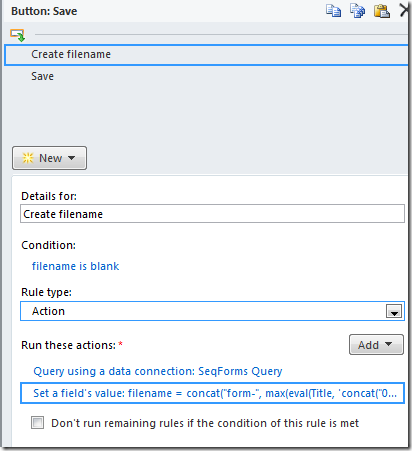
image


Here's the form running in Form Server
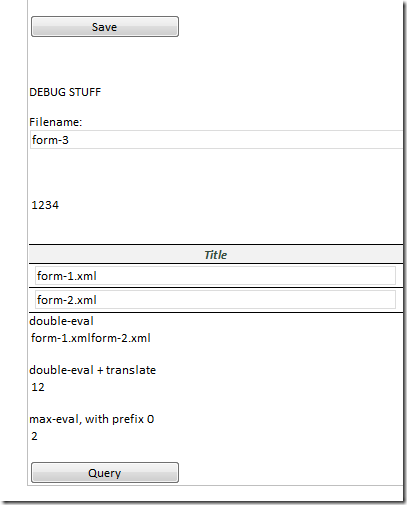
image


Download

InfoPath how to copy a repeating section using rules

For years, we all thought this was impossible.  You had to use code.  I somehow woke up with an idea on how to do this, and set about testing and to my surprise, found a solution.  Here it is!


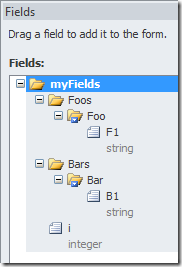
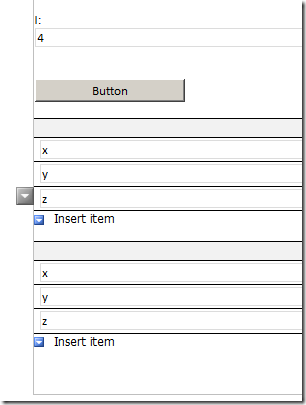
The form set up

image

  • Two repeating sections, Foo's and Bar's
  • One additional integer field i to control which row to copy

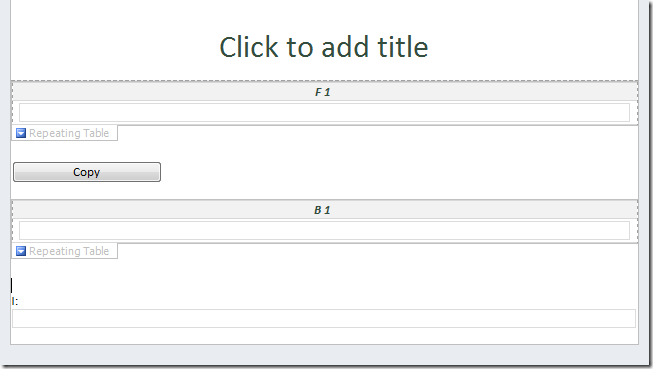
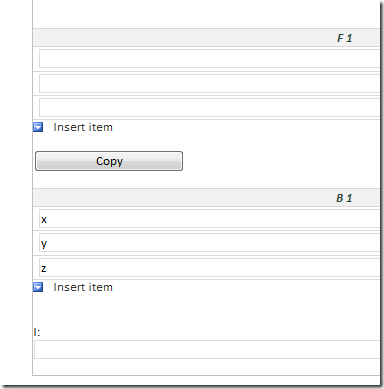
Put the elements on the form:

image


The copy rule

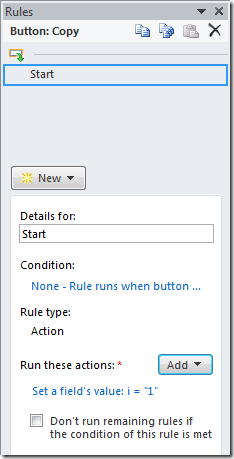
Create a rule on the integer field i

  1. We will use the normal action, then tweak it. 
    Give this rule the name "Copy"
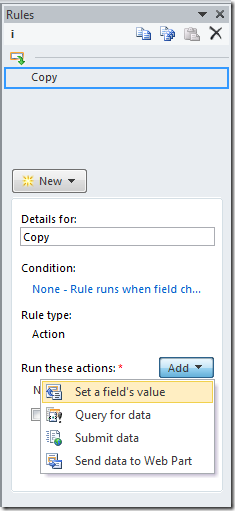
    Start by defining a set field value rule.
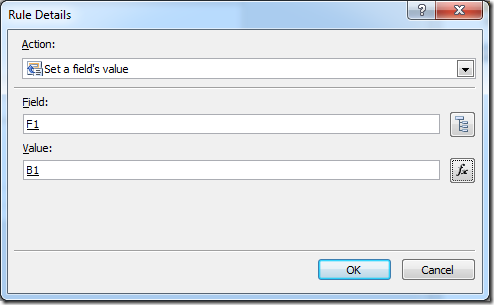
    image
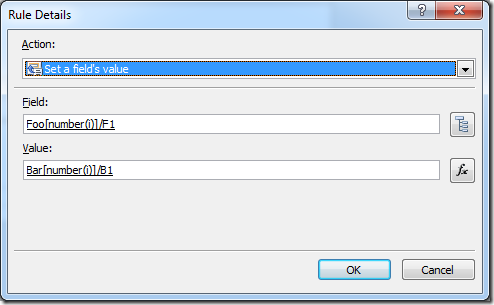
  2. Set /my:myFields/my:Foos/my:Foo/my:F1 to /my:myFields/my:Bars/my:Bar/my:B1
    image

    There are a few issues so far with the default Set Field Value action related to a repeating section.
    • For the Field (target), it will set ALL the matching nodes.
    • For the Value, it will get the First matching node.
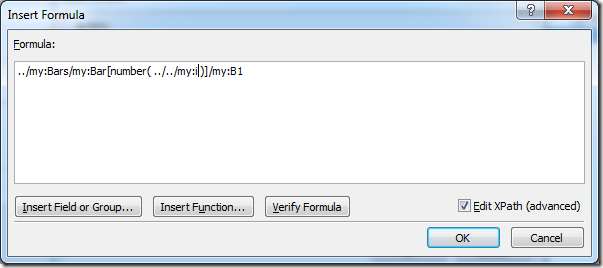
  3. Let's fix the second value - we can do this in InfoPath designer.
    image

    The expression is:
    ../my:Bars/my:Bar[number(../../my:i)]/my:B1

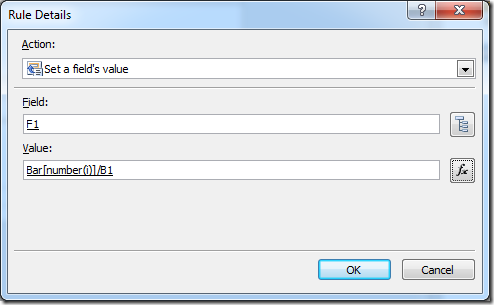
    This expression lets us copy a different row.

    image

    So we can now copy value from any row - depending on what the number i is.
  4. To fix the Field Target is a bit more difficult.  InfoPath designer doesn't give us a way to modify the XPath of the field.

  5. Save the form.  We're about to do unsupported stuff. 
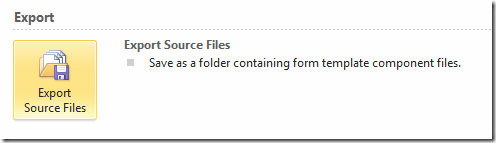
  6. Publish the form to Source Files. 
    image

    I publish to C:\Temp\CopyForm\
  7. Close InfoPath designer.  Open the file C:\Temp\CopyForm\manifest.xsf file using NotePad or your favourite XML editor.
  8. The "Copy" rule is hiding in this XML file, it looks like this:
  9. <xsf:rule caption="Copy">
        <xsf:assignmentAction targetField="../my:Foos/my:Foo/my:F1" expression="../my:Bars/my:Bar[number(../../my:i)]/my:B1"></xsf:assignmentAction>
    </xsf:rule>

  10. Change it to:
  11. <xsf:rule caption="Copy">
    <xsf:assignmentAction targetField="../my:Foos/my:Foo[number(../../my:i)]/my:F1" expression="../my:Bars/my:Bar[number(../../my:i)]/my:B1"></xsf:assignmentAction>
    </xsf:rule>
  12. Save, and close Notepad.  Re-open manifest.xsf file using InfoPath Designer
  13. Let's check our rule.
    image
  14. Are you thinking what I'm thinking?  We're nearly there.

The loop

  1. This rule is set on the number i, and runs once whenever the number i changes.
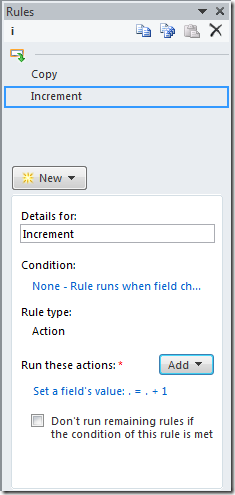
  2. Lets set it up to increment.
    image
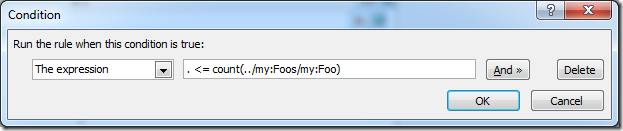
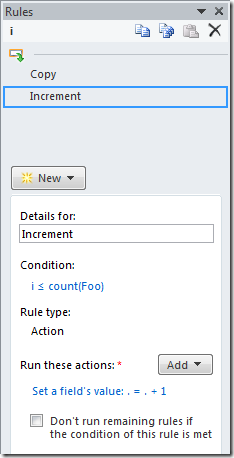
  3. Add a condition to stop incrementing when we've run out of rows
    image

    image
  4. And to start the whole thing, remember we have a button.

    image

    To start the process, set i to 1.  XML index starts from 1 to n.  Does not start at 0.


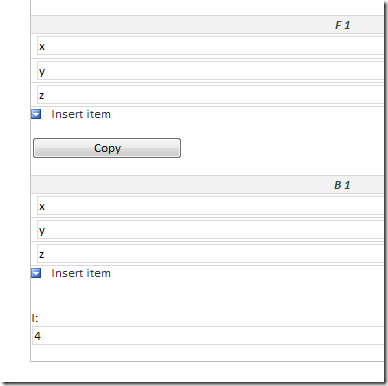
Result - InfoPath Filler


image
Starting...

image

Press "Copy"

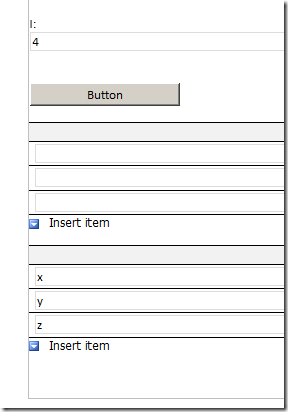
Result - Form Server:

image

Starting Browser Form

image

Copy.


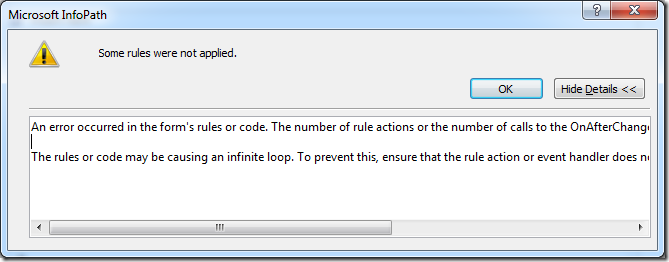
Note - InfoPath "Infinite Loop" limitation:

InfoPath is hard coded to only execute 16 rules before throwing the "Infinite Loop" error.

image

An error occurred in the form's rules or code. The number of rule actions or the number of calls to the OnAfterChange event for a single update in the data exceeded the maximum limit.

The rules or code may be causing an infinite loop. To prevent this, ensure that the rule action or event handler does not update the data which causes the same rule action or event handler to execute.


There is no solution for hard coded 16 rules.  So your i can not go over 16.

Download

InfoPath - LoadDocumentAndPlayEventLog NullReferenceException

Error:

LoadDocumentAndPlayEventLog failed with unhandled exception System.NullReferenceException: Object reference not set to an instance of an object.     at Microsoft.Office.InfoPath.Server.Converter.DetectUnsupportedNamespaces.VerifyNamespace

This is a very uncommon bug.  Essentially, you are using custom code in InfoPath, and you are using code that doesn't have a namespace.  Say a helper function that you've included in your code.

When InfoPath Forms Services attempt to validate your form, it finds that your form template contains reference to code that doesn't have a namespace!

The fix is simple, create a namespace for the helper class, or move the helper class under the namespace of the form's namespace.

InfoPath - check leap year using expression


This is a fun one.

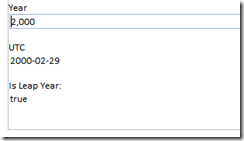
  1. Use the undocumented msxsl:utc function, which checks / converts a date into a normalized representation.

    image

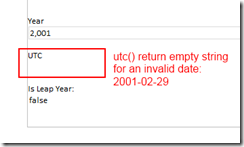
  2. So, what will happen if I test it with with a garbage date, say, the 29th of February of 2001, which isn't a leap year?

    image
  3. So just check if the result of the utc function returns empty string or not.

Expression

msxsl:utc(concat(my:year, "-02-29")) != ""

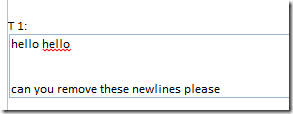
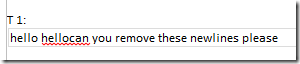
InfoPath - removing newline (CRLF) using rules


  1. In InfoPath (and in Windows in general), a newline is two characters \r\n (carriage return, followed by a newline character).
  2. You can't easily use \r or \n within InfoPath rules, since the XML is escaped into \\r and \\n defeating your intention.
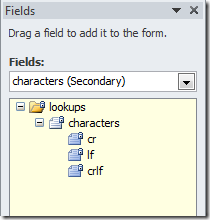
  3. First, add a characters secondary data source: Add an external XML file for characters
    You should get this secondary data source with the special characters we need.
    image
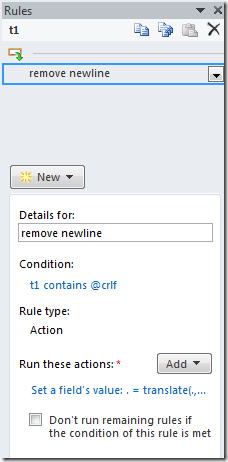
  4. On the field that you want to remove newlines, add a changed rule:
    image

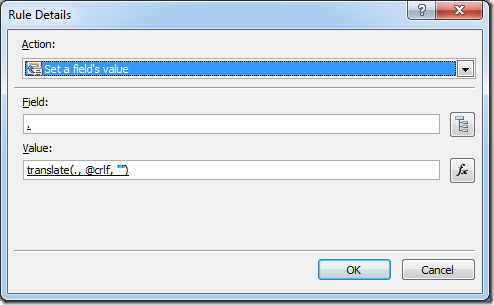
    The translate rule is:
    translate(., @crlf, "")
    or expanded xpath:
    translate(., xdXDocument:GetDOM("characters")/lookups/characters/@crlf, "")

    use select field and change the datasource to characters.
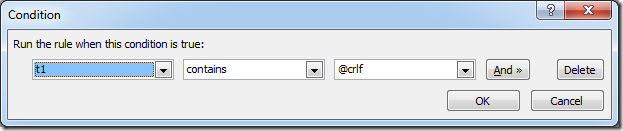
  5. To prevent this rule from running into infinite loop, set a condition:

    image

    The expression is:
    contains(., xdXDocument:GetDOM("characters")/lookups/characters/@crlf)
  6. Result:
    image 

Test it!


image
Test typing something with newline

image
Rule runs and removes any new line characters