Office - fixing the repairing problem when opening Word or Access

I spend the evening hunting down why every time I run Office 2010 in my demo machine, it would first launch configuration...  Always configuring...

After a few attempts at reinstalling that doesn't seem to lead anywhere, I decided to read the registry and see if there's some residue key that's causing problems.

While I didn't find the key, I did find a few very suspicious looking keys that it was requesting, right before launching into the Configuration Wizard (again).


NoRereg DWORD

For Word, Excel, PowerPoint... and most of Office:

Create a DWORD NoRereg=1

HKEY_CURRENT_USER\Software\Microsoft\Office\14.0\Word\Options
NoRereg=1


NoRepairNeeded KEY

For Access:

Create a KEY NoRepairNeeded.  I don't seem to need to add any default values or any other values in the key.

HKEY_LOCAL_MACHINE\SOFTWARE\Microsoft\Office\14.0\Access\NoRepairNeeded

SharePoint 2010 Branding tools

About to head off to a client to do about a week’s branding work.  I was loading my SharePoint laptop with all the tools that I think I’ll need.  I thought I would publish the list as well.

 

Designer tools

  • SharePoint Designer 2010
  • Browser: IE 7, 8 or IE9
    • With IE Developer toolbar (in IE8 and IE9 this is built in)
    • Later versions of IE has compatibility modes and can render SharePoint in IE6/7/8 modes.  Strictly speaking this is no substitute for using the corresponding version of IE that your client is using – but you should aim to have a clean HTML that will work anyway.
  • Browser: FireFox (latest stable)
    • With FireBug – you need a stable version of FireBug, so I don’t recommend using the latest alpha/beta FireFox.
    • (Optional) YSlow
  • Browser: Google Chrome
    • Google developer tools are built in
  • Paint tool:
    • (Optional) Adobe Photoshop
    • Paint.NET
  • CSS tool:
    • (Optional) Expression Studio
  • (Optional) Office 2010 Client Applications
    • Is necessary to check various components and menus that only appear when you have the corresponding ActiveX.  In general, if you have SharePoint Designer 2010 installed you should have most components already.


Packaging tools

  • Personal SharePoint 2010 VM
  • Visual Studio .NET 2010
    • CKS Dev
    • SharePoint Powertools for Visual Studio .NET
  • Reflector
  • ULS Viewer
  • Fiddler 2

InfoPath exception occurred during loading of business logic for central published form


This is a really strange one.  I can’t fully explain it, but I totally stumbled upon a workaround.

  1. I publish an InfoPath form with domain trust through central administration.  It pushed my form into a form template for my site http://myserver/ 
  2. I try to create a new form in a forms library based on that published template.
  3. I get an error when I try to load the new form in Forms Service:

There are various errors in the event log and the log.  Event Log says:

An exception occurred during loading of business logic. (User: SHAREPOINTGURUS\john.liu, Form Name: MyForm, IP: , Request: http://myserver/_layouts/FormServer.aspx?XsnLocation=http://myserver/FormServerTemplates/MyForm.xsn&SaveLocation=http://myserver/Forms&Source=http://myserver/Forms/Forms/AllItems.aspx&DefaultItemOpen=1, Form ID: urn:schemas-microsoft-com:office:infopath:MyForm:-myXSD-2010-11-14T21-46-49, Type: FileNotFoundException, Exception Message: Could not load file or assembly 'file:///C:\Program Files\Common Files\Microsoft Shared\Web Server Extensions\14\Template\Features\FT-01-3032e4bd-bd7f-61d1-42aa-f9786a132aee\MyForm.dll' or one of its dependencies. The system cannot find the file specified.)


In you drill into the various errors you’ll see actually there appears to have been an error during the deployment of the form, thus the form actually haven’t been deployed properly.  What’s really strange though, is this fix that I came across and can’t explain.


Fix?

  1. Go to Library Settings for http://myserver/Forms/
  2. Since you are using central admin deployed forms – you should be using Content Types, I only have Forms content type here.  Click that.
  3. Then click Advanced Settings
  4. Check the Form content type’s Form Template URL in the advanced settings.  In my case it is still pointing to the file in /Form Templates/
  5. Don’t change anything - Click OK
  6. Suddenly I can create new forms again in /Forms/

SharePoint's Silverlight webpart defaults to WindowlessMode


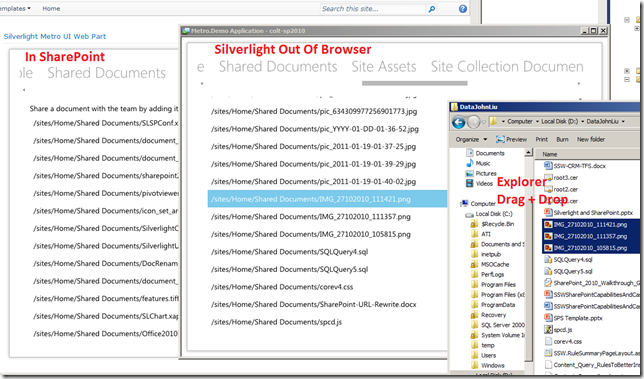
Because SharePoint’s Silverlight webpart defaults to windowless="true", there are some features of Silverlight that won’t work as you’d expect out of the box.

  • Drag and drop events
  • Transparency
  • Overlay DIV

By default, it renders something like this:

<object id="SilverlightObjectTag_xxx" data="data:application/x-silverlight-2," type="application/x-silverlight-2" style="display:block" height="100%" width="100%" class="ms-dlgDisable">

<param name="source" value="/sites/Home/Style Library/SilverlightCamera.xap"/>

<param name="onerror" value="…" />

<param name="background" value="white" />

<param name="initParams" value="…" />

<param name="windowless" value="true" />


Luckily, the SharePoint team provides an easy property to override this value.

http://msdn.microsoft.com/en-us/library/microsoft.sharepoint.webpartpages.silverlightwebpart.windowlessmode.aspx

When packaging your Silverlight .webpart file, configure the XML to set the WindowlessMode property to false.

<?xml version="1.0" encoding="utf-8"?>
<webParts>
  <webPart xmlns="http://schemas.microsoft.com/WebPart/v3">
    <metaData>
      <type name=
"Microsoft.SharePoint.WebPartPages.SilverlightWebPart, Microsoft.SharePoint, Version=14.0.0.0, Culture=neutral, PublicKeyToken=71e9bce111e9429c" />
      <importErrorMessage>Cannot import this Web Part.</importErrorMessage>
    </metaData>
    <data>
      <properties>
        <property name="Title" type="string">Silverlight Metro UI Web Part</property>
        <property name="Description" type="string">Metro UI.</property>
        <property name="Url" type="string">~sitecollection/Style Library/Metro.Demo.xap</property>
        <property name="Height" type="int">800</property>
       <property name="WindowlessMode" type="bool">false</property>
      </properties>
    </data>
  </webPart>
</webParts>


Then the rendered HTML will have the value set appropriately, and Silverlight drag and drop events will work happily again, in SharePoint.