InfoPath 2010 COM Add-ins not available in Form Design

In a previous life, I wrote Outlook and Word Add-ins to automate/extend those office apps.

I was looking up whether there’s a way to script or create a COM Add-In to InfoPath during Form Design, so we can do 1-click refresh/update all secondary data connection offline data, without manually clicking wizards. Or even hook into some sort of OnPublishing event so it does the update automatically when you are about to Publish the form.

INTERESTING…

You can write COM Add-in for InfoPath 2010! Apparently new in 2010.

BAD!

Can’t extend the InfoPath form designer. Can only extend the editing. But that means you have more deployment issues.

http://msdn.microsoft.com/en-us/library/aa946869.aspx

How to: Create a COM Add-in to Add Custom Features to InfoPath

Office 2010

Microsoft InfoPath 2010 supports COM Add-ins for extending the form editing user experience. Although support for COM Add-ins was first added in InfoPath 2010, other Office applications such as Microsoft Office Word and Microsoft Office Excel have supported COM add-ins since Office 2000.

COM Add-in support in InfoPath is available for the form editing environment. The form design environment cannot be extended by using COM Add-ins.

Did MS ran out of time?

SharePoint 2010 WCF HelloWorld Service and InfoPath

Was looking for a quick tutorial for creating a Custom WCF Service for SharePoint 2010.  For some reason couldn’t find one, so I sat down and try it out and decide to write out a few simple steps.

Use CKSDev

http://cksdev.codeplex.com/ version 1.2 included new Visual Studio Item templates for creating WCF services and makes this whole process a breeze.  Thanks to Charlie Holland’s hardwork.


Build Solution

  1. Create New Blank VS.NET SharePoint Solution “HelloWorldWCF”
  2. WCF Service has to be a Farm Solution.
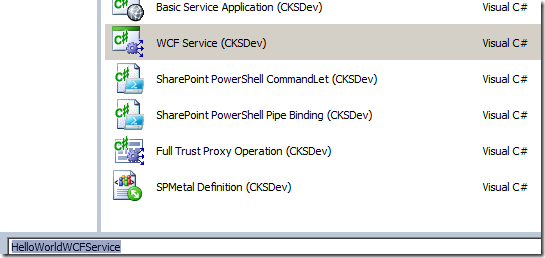
  3. Add New Item, and select WCF Service (CKSDev)image
  4. The created Service includes a stub method that returns a string.

    [BasicHttpBindingServiceMetadataExchangeEndpoint]
    [AspNetCompatibilityRequirements(RequirementsMode = AspNetCompatibilityRequirementsMode.Required)]
    public class HelloWorldWCFService : IHelloWorldWCFService
    {
        // To test this service, use the Visual Studio WCF Test client
        // set the endpoint to http://<Your server name>/_vti_bin/HelloWorldWCF/HelloWorldWCFService.svc/mex
        public string HelloWorld()
        {
            return "Hello World from WCF and SharePoint 2010";
        }
    }
  5. Compile solution and Deploy to server

Verify Service

  1. The service is deployed to /_vti_bin/HelloWorldWCF/HelloWorldWCFService.svc
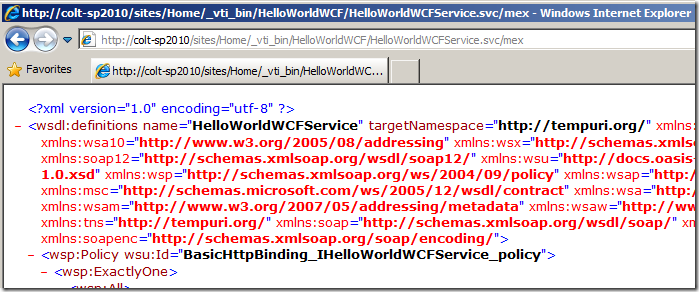
  2. The endpoint is at http://server/_vti_bin/HelloWorldWCF/HelloWorldWCFService.svc/mex
  3. Browse it with your browser you should see:

image


Connect Via InfoPath

  1. Create an External Connection
  2. Select SOAP Service, use the /mex endpoint
  3. You may be asked to authenticate with the service
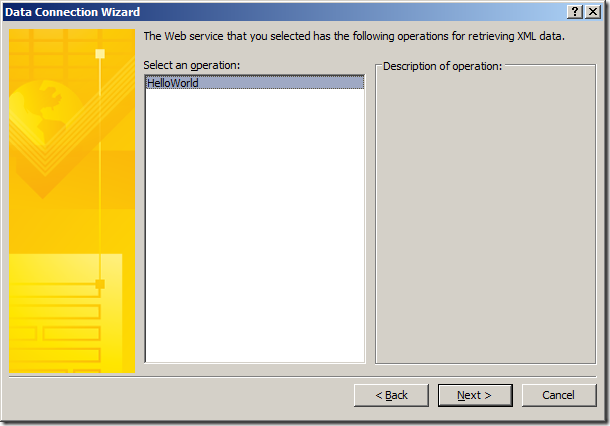
  4. Select the method

    image
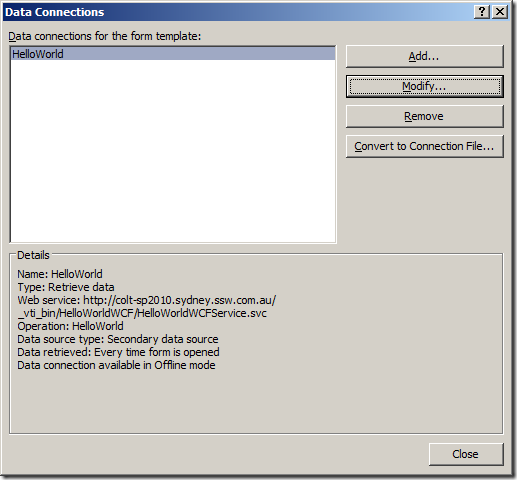
  5. Cache, and Retrieve when form load as necessary.

    image
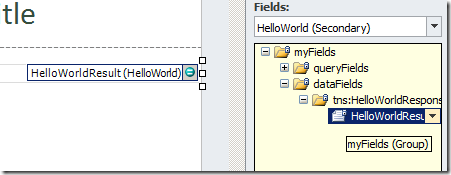
  6. Bind the result of the web service to a textbox

    image


Test in InfoPath

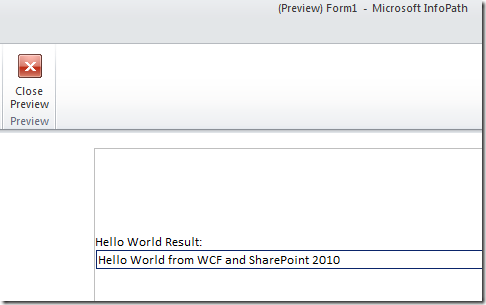
  1. Preview the InfoPath form

    image

SharePoint and Reporting Services Integration, the good, the bad, and the ugly


Benefits of using Reporting Services in SharePoint integrated mode

  1. Version Control in SharePoint (vs. BIDS project saved in TFS).  Having version control for reports is critical, especially if you allow end users to use Report Builder.  Using BIDS with TFS is fine.  But if you are directly using Report Builder with Report Server native mode is terrifying.
  2. Check-in / check-out
  3. Draft/publish versions
  4. Alerts (when someone updates reports)
  5. Workflows (though to be honest - I have yet to see a business reason to use workflow for .rdl)
  6. If you are using SharePoint to surface your reports, the integrated webparts makes sense.  Though with reporting server in native mode you can still use a Report Viewer webpart via IFrame.

Same / Similar functionality

  1. Report Subscriptions are handled by RS
  2. URL: Report Server or SharePoint document library
  3. Permissions control either in Report Server, or in SharePoint

Problem / suggestions

  1. To use integrated mode you _do_ need to have SharePoint somewhere.  Sometimes a company may only have a database and don't even have IIS on the database server.
  2. But if you use native mode, and need some sort of source control, you'll need TFS.  So may be install SharePoint is more useful than TFS for a power user / BI Expert.
  3. A reporting service can only connect to one SharePoint - you can't join two different farms (e.g. dev sp and prod sp).  This was a concern during migration to SP2010 - some reports are for intranet and some for public…  can't move one or another.
  4. Report database cannot switch modes between native and integrated - so migrating reports is a pain in the butt - you need to export old reports, create a new report database and choose integrated mode, then add them back in.  A bit painful I think.
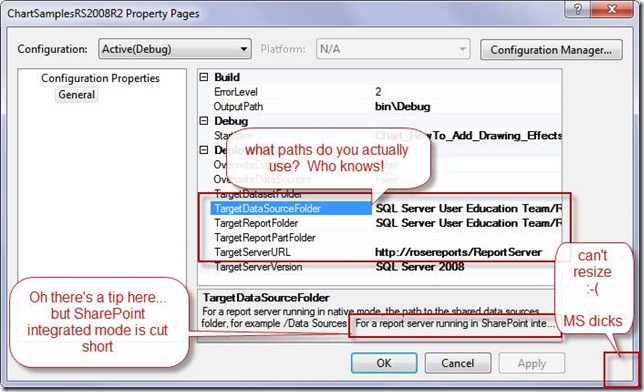
  5. The UI for setting up BIDS project to export to SharePoint integrated mode is REALLY crap.  I have no mercy for this crap dialog:

clip_image002

clip_image004


The trick

Native mode

  • TargetServerURL: http://Server/ReportServer
  • TargetDataSourceFolder: /Data Sources                           <- OK.  Deploy no problems.

SharePoint mode

  • TargetServerURL: http://server
  • TargetDataSourceFolder: /Documents/Data Sources           <- wrong!  
  • TargetDataSourceFolder: http://server/documents/Data Sources/   <- correct.  Need entire URL.  WHO THE HECK KNOWS THIS WITHOUT THE TOOLTIP?

If you don't set up the folder properly as per example.  BAM deploy fail no proper errors.  Just says no permission to path or some irrelevant rubbish - sends you in circles thinking you stuffed up SharePoint…

Automatic Relink InfoPath Forms Event Receiver

I’ve been working on an InfoPath solution that requires both Offline and Online capabilities.

Problem and Background

An InfoPath form has two components – the XML describing the data in the form, and the template, describing the layout of the form.

In the Offline scenario, when a user opens an InfoPath form – it looks for a template definition that’s stored offline (in a file server). 

In the Online scenario via Forms Services, the Form template is stored in SharePoint (as the template of a document library / content type).  InfoPath Forms Services then renders the form as a web page to the user.

In the MIXED scenario, where you fill out a form offline, then submit and store it Online, we have a situation where the Offline form is submitted to the Forms Library, but it still wants the template that’s stored in the Network Share.

Manual Solution

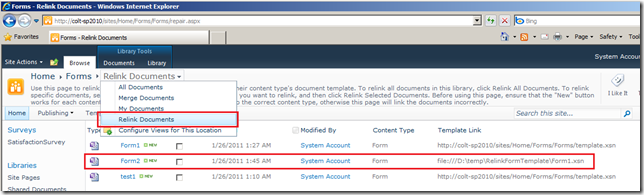
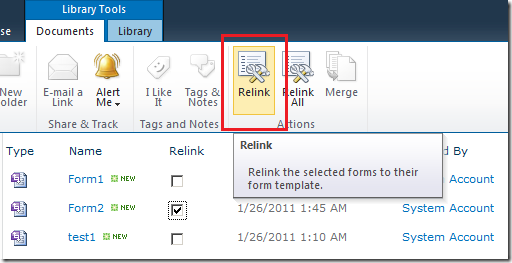
SharePoint provides a manual solution, in the form of a Relink page that’s available on all Form Libraries. 

image

Figure: Form2’s template link is still pointing to the file system.  Not SharePoint.

Select and choose Relink from the Ribbon to fix this.

image


The Automatic Way…


Enter the SharePoint Gurus Relink Forms Template sandbox solution.

The idea is simple:

  1. Build an Event Receiver, listen to Add/Update events on the Forms Library. 
  2. Fix the form’s template URL to that of the Form library.
  3. Bonus: Sandbox solution so you don’t need to be administrator.


Installation:

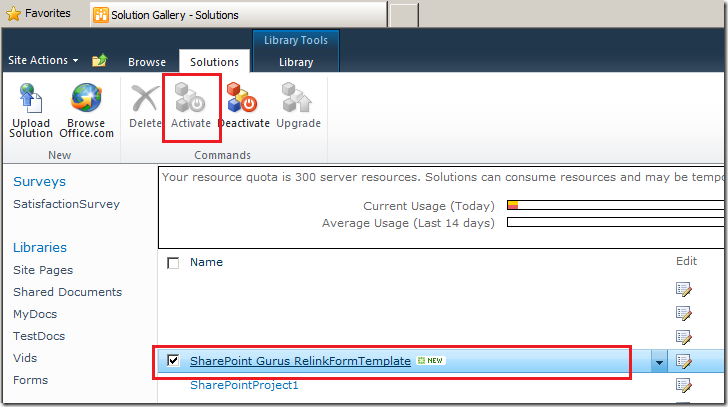
  1. Grab SharePoint Gurus Relink Forms Template sandbox solution
  2. Upload to Solutions Gallery

    image

  3. Activate Sandbox Solution
  4. Activate Web Feature

    image

Test


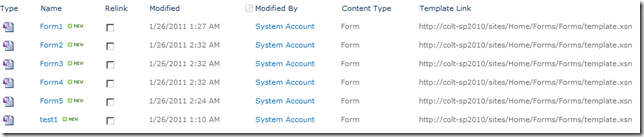
Upload files to Forms Library

image

Fixed!


Code Below


public override void ItemAdding(SPItemEventProperties properties)
{
    base.EventFiringEnabled = false;
    RelinkFormTemplate(properties);
    base.ItemAdding(properties);
}


public override void ItemUpdating(SPItemEventProperties properties)
{
    base.EventFiringEnabled = false;
    RelinkFormTemplate(properties);
    base.ItemUpdating(properties);
}
private string GetTemplateURL(SPContentTypeId contentTypeId, SPList spList, SPWeb spWeb, string strSolutionURL)
{
    // this code is mostly modified from Microsoft.SharePoint.ApplicationPages.SubmitRepair, repackaged as an Event Receiver

    SPContentType type = spList.ContentTypes[contentTypeId];
    if (type == null)
    {
        return strSolutionURL;
    }
    string documentTemplate = type.DocumentTemplate;
    if (documentTemplate.StartsWith("http://", StringComparison.Ordinal) ||
documentTemplate.StartsWith("https://", StringComparison.Ordinal))
    {
        return SPHttpUtility.UrlPathEncode(documentTemplate, true);
    }
    if (documentTemplate.StartsWith("/", StringComparison.Ordinal))
    {
        return SPHttpUtility.UrlPathEncode(spWeb.Site.MakeFullUrl(documentTemplate), true);
    }
    return SPHttpUtility.UrlPathEncode(spWeb.Url + '/' + spList.RootFolder + '/' + documentTemplate, true);
}

public void RelinkFormTemplate(SPItemEventProperties properties)
{
    // this code is mostly modified from Microsoft.SharePoint.ApplicationPages.SubmitRepair, repackaged as an Event Receiver

    SPList spList = properties.List;
    object property = properties.AfterProperties["ContentTypeId"];
    if (property == null)
    {
        // publishing template from InfoPath?
        return;
    }
    string contentTypeId = property.ToString();

    SPWeb spWeb = properties.Web;
    SPDocumentLibrary spLibrary = (SPDocumentLibrary)spList;
    string strSolutionURL = SPHttpUtility.UrlPathEncode(spWeb.Url + "/" + spLibrary.DocumentTemplateUrl, true);

    string newTemplateUrl = this.GetTemplateURL(new SPContentTypeId(contentTypeId), spList, spWeb, strSolutionURL);
    if ((properties.AfterProperties["TemplateUrl"] != null) &&
(!string.Equals(newTemplateUrl, properties.AfterProperties["TemplateUrl"].ToString(), StringComparison.CurrentCultureIgnoreCase)))
    {
        properties.AfterProperties["TemplateUrl"] = newTemplateUrl;
    }
}

Silverlight + SharePoint - add to web part gallery

This article covers how to go about packaging a webpart for the Silverlight XAP file and deploy it to Web Part Gallery.

In the previous article I described the steps to create a SharePoint project and deploy the XAP file via a site feature.

Silverlight + SharePoint 2010 - package XAP file in a sandbox WSP Solution

But the user still needs to manually:

  1. Find the XAP file URL
  2. Manually insert a Microsoft out of box Silverlight Web Part
  3. Paste the XAP URL
  4. Save the Silverlight Web Part (may have to configure InitParams too).

Let's simplify this a little.

Go back to the <Elements> Module, and lets add a webpart

<?xml version="1.0" encoding="utf-8"?>
<Elements xmlns="http://schemas.microsoft.com/sharepoint/">
  <Module Name="SilverlightCamera">
    <File Path="SilverlightCamera\SilverlightCamera.xap" Url="Style Library/SilverlightCamera.xap" />
    <File Path="SilverlightCamera\SilverlightCamera.webpart" Url="_catalogs/wp/SilverlightCamera.webpart" />
  </Module>
</Elements>


The webpart file itself is very simple: go to Web Parts Gallery, find and export Microsoft's Silverlight.webpart

<?xml version="1.0" encoding="utf-8"?>
<webParts>
  <webPart xmlns="http://schemas.microsoft.com/WebPart/v3">
    <metaData>
      <type name=
"Microsoft.SharePoint.WebPartPages.SilverlightWebPart, Microsoft.SharePoint, Version=14.0.0.0, Culture=neutral, PublicKeyToken=71e9bce111e9429c" />
      <importErrorMessage>Cannot import this Web Part.</importErrorMessage>
    </metaData>
    <data>
      <properties>
        <property name="Title" type="string">Silverlight Camera Web Part</property>
        <property name="Description" type="string">A web part to display a Silverlight Camera.</property>
        <property name="Url" type="string">~sitecollection/Style Library/SilverlightCamera.xap</property>
        <property name="Height" type="int">300</property>
      </properties>
    </data>
  </webPart>
</webParts>


You may have noticed that the Url is a SiteCollection relative (~sitecollection/) path, so that no matter whether it's a root site collection or a managed path, we want the user's experience to be perfect.

Unfortunately - that syntax doesn't work, not without one extra hack via the Feature Event Receiver.

Feature Activated Event Receiver


Right click on the feature and add a new event receiver.  VS.NET will generate the CS file.
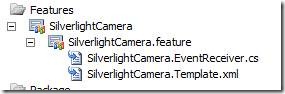
clip_image002

Figure: right click on the feature (.feature) and add an event receiver. 


Waldek has a magical event handler code that fixes this problem

http://blog.mastykarz.nl/inconvenient-content-query-web-part-server-relative-urls/

So I'll just post my bit of code here

public override void FeatureActivated(SPFeatureReceiverProperties properties)
{
    // one day when I meet Waldek in person I will buy him beer
    // http://blog.mastykarz.nl/inconvenient-content-query-web-part-server-relative-urls/
    SPSite site = properties.Feature.Parent as SPSite;
    if (site != null)
    {
        SPList webPartsGallery = site.GetCatalog(SPListTemplateType.WebPartCatalog);
        SPListItemCollection allWebParts = webPartsGallery.Items;
        SPListItem webPart = (from SPListItem wp in allWebParts
                              where wp.File.Name == "SilverlightCamera.webpart"
                              select wp).SingleOrDefault();
        if (webPart != null)
        {
            string siteCollectionUrl = site.ServerRelativeUrl;
            if (!siteCollectionUrl.EndsWith("/"))
            {
                siteCollectionUrl += "/";
            }
            string fileContents = Encoding.UTF8.GetString(webPart.File.OpenBinary());
            fileContents = fileContents.Replace("~sitecollection/", siteCollectionUrl);
            webPart.File.SaveBinary(Encoding.UTF8.GetBytes(fileContents));
        }
    }
}


During Feature Activated - find the webpart and fix the ~sitecollection marker with the real site collection URL.


Deploy and activate the feature again.

clip_image002[5]


Success!  Our .webpart now appearing in the web part gallery.