Power Automate API changes - v2 Admin scope now needs user_impersonation

This blog post is about two major updates to Flow Studio App and Flow Studio for Enterprise.

MSAL v2 Update

First one, we finally updated Flow Studio to MSAL v2 there’s a few reasons for this, but primarily, this is because we want to support modern browsers that are now by default disabling 3rd party cookies, which prevented previous authentication via hidden iframe method in earlier versions of MSAL and ADALjs.

Incidentally, this also means Flow Studio App now works on iPad and Safari. And should work better for many customers within enterprise that has 3rd party cookie disabled.

MSAL also supports multiple accounts so that’s an interesting scenario in the future to support multi-user or multi-tenancy? We’ll see.


Power Automate Admin API Scope

Secondly, we have a note on Power Automate API changes and how it affects us.

Power Automate /scopes/admin/v2/ supports fetching up to 250 flows per request prior to paging, by comparison, v1 only supports 50 flows. This means reading flows as admin is once again much quicker.


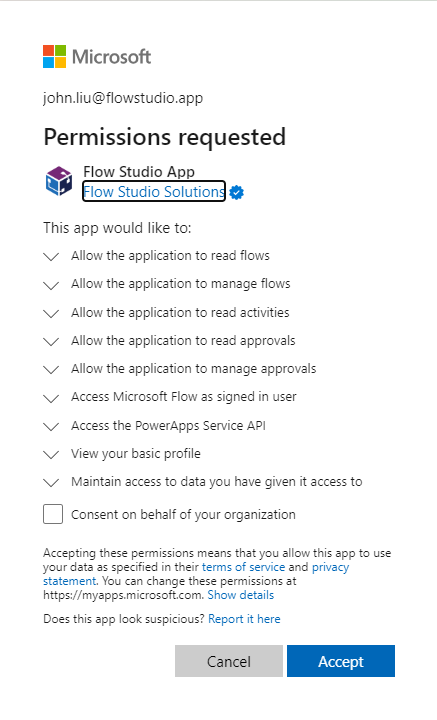
But we’ve also noticed that admin flow requests now need an additional user_impersonation scope.

Access Microsoft Flow as signed in user” (nice name!)


When customers login to Flow Studio App v1.1.45 or later, you will be asked to re-consent due to this additional scope.


field notes using Power Automate with Power BI

I have been working at a client learning, testing and building Power BI reports, datasets, dataflows, datamart and dashboards for the last 8 months. With a fairly healthy dose of Power Automate thrown in. I wanted to take a short breather and write down some of the learnings so far. I also would really like to hear your feedback regarding what your Power BI best practices are.

I will be presenting my experiences and examples in the Australian Digital Workplace Conference next week in Melbourne. I hope I’ll be seeing you there.

The system components

  • Call the API of a custom business application to retrieve project & product data, the system uses a NoSQL database, so we are pulling out pages of JSON via Power Automate.

  • At the moment, we store these JSON files into a document library in SharePoint.

  • Use Power BI dataflow to process and merge these JSON data into a staging table.

  • Use Power BI dataflow to transform data from the staging dataflow to actually do work.

  • Reports use the staging dataflow, and reference it if additional local transformations are needed.

  • Fancy visuals with Deneb and HTML content visuals.

Calling APIs - we are using HTTP request and calculating nonce and api-key within Power Automate - this wasn’t something Power BI can call directly without some middleware. In particular, we are interested in a subset of projects from our dataset - so every evening, Power Automate calls Power BI Dataset Query, fetch a list of project codes and make API calls. It also checks if there’s been a change from the version stored in SharePoint and skips writing if the JSON has not been modified. (Unfortunately, we don’t have a last modified metadata from source).

We put JSON data into a SharePoint library and store them by months - this is because the business has a monthly reporting cycle, and we wanted data captured against last month vs this month. An alternative would be to use Azure Blob Storage for this staging area, because once we reached several hundred JSON files, SharePoint often throws too-busy error to Power BI during data refresh.

On re-use, we tried a myriad of methods, and we found using two dataflows to work the best. The first dataflow provides raw json content per file from SharePoint. This dataflow is configured for incremental refresh, so if the JSON isn’t updated, this doesn’t need to refresh in the dataflow (this solves our file too busy problem). Datamart can’t easily be used within the ETL of another dataflow (it’s more suitable for direct query).

Our second dataflow is where we do the transformation of the json data navigate the JSON structure and pull out records, lists accordingly.

We try to have very light local transformation or modification within the Power BI report. Instead, as much as possible, we want to run the transform within the dataflow.

This is a high-level overview blog post and there’s quite a bit more (smaller, bite sized) notes I want to write down in time, but this will do for now, and we’ll leave the rest for a future discussion.

Other design decisions, notes and thoughts

  • What Power Automate brings to the table.

  • What Power BI Dataflows brings to the table.

  • Notes on using DAX and Power Query M

  • Using Dataverse

  • Considerations with using SharePoint or Azure Blob Storage

  • Licensing costs

“Soon” Azure Data Factory and Microsoft Fabric offerings

Turning a new page

Wanted to write again, and let everyone know what I’ve been up to. I ended up taking a break through most of 2021 and 2022 simply resting, recovering, and doing light work from home.

2023 resumed with a big bang, I found motivation and drive to dive back into the many projects I’ve temporarily shelved in the last two years. I’ve also became pretty handy with a bunch of home DIY projects. It was a big change to the old me that only knew how to do digital projects but not physical projects. Perhaps more on that in a future post.

Flow Studio

We’ve had several Flow Studio fixes in the last two months

  • there was an API pagination fix since the API no longer accepts 250 records at once and restricts us to only 50. (That means more pages and API call takes longer)

  • API auth fix relating to Power Apps is in-progress.

  • There’s a second API skip/continuation token fix.

  • We’ve also tweaked the way trail is applied when anyone wants to try Flow Studio pro - you can sign up and trial will be available for two weeks - you can cancel the subscription before the trial end date to avoid being charged, if Flow Studio isn’t suitable for you.

Clarity / Flow Studio for Teams and Enterprise

We’ve had renewed interest in Flow Studio for Teams and Enterprise (Clarity) through the last few years.

  • Flow Studio for Teams will be tweaked to focus on monitoring critical flows and alerting users when their business critical flows fail. This will be priced simply and does not offer governance capabilities.

  • Flow Studio for Enterprise will be focused on the turnkey Power Platform Governance story, adding new features to scan more areas of the Power Platform, and integrate with CoE starter kit.

  • So far this year, we’ve added BYO Azure Storage. There’s been a lot of fixes to API breakages in Power Apps area this year.

Contract Work

I started a regular part time contract work in Sydney CBD, so if you are local, hit me up for a coffee.

  • I’m working with a lot of Power BI reports

  • There’s a lot of Power Automate doing the heavy lifting as well.

  • We are also talking about adding some Power Apps visuals to allow executive comments to be collected during a report presentation.

Community

Several of the meetups, conferences and events that I used to participate in are becoming active again. I hope to see more of the community not just virtually, but physically as well. I hope to be able to grab a coffee with you soon.

Parse CSV through Code in Power Automate Custom Connection

I was inspired reading Alex Shlega and Hiroaki Nagao ’s posts on using code with custom connections. So I set out to give it a go and work on another common problem I have: Parse CSV

First a picture showing you how it works.

Give it text, the action returns array of arrays.

Microsoft’s docs are here.
Write code in a custom connector | Microsoft Docs

And particularly, I need to parse CSV without using additional libraries, and using only the existing libraries available here. I noted that we do have access to System.Text.RegularExpressions, so I started my planning there.

Because parsing CSV correctly is a problem best sorted via use of a tokenizer, I went looking for a regular expression pattern that treats each line as a series of tokens. There are many patterns, but I like this one that I found on stackoverflow the best for my needs. https://stackoverflow.com/a/48806378

Code

So the code takes all the content of the body and splits by line breaks, then the regular expression is run over every line using Matches (this method returns multiple matches giving us a MatchCollection of tokens). In each match, I look for Group[2] which is the value without quotes “ and “. But if failing that match, we take Group[1] value.
We do not take the Match.Value because that would include the comma.

/end of regular expression explanation.

We cast the matches back to array via Linq and then back to JArray and return that back to Flow.

public class Script : ScriptBase { public override async Task<HttpResponseMessage> ExecuteAsync() { if (this.Context.OperationId == "csv") { return await this.HandleCSV().ConfigureAwait(false); } HttpResponseMessage response = new HttpResponseMessage(HttpStatusCode.BadRequest); response.Content = CreateJsonContent($"Unknown operation ID '{this.Context.OperationId}'"); return response; } private async Task<HttpResponseMessage> HandleCSV() { var contentAsString = await this.Context.Request.Content.ReadAsStringAsync().ConfigureAwait(false); // (?:,|\n|^)("(?:(?:"")*[^"]*)*"|[^",\n]*|(?:\n|$)) // https://stackoverflow.com/a/48806378 var re = new Regex("(?!$)(\"((?:(?:\"\")*[^\"]*)*)\"|[^\",\r\n]*)(?:,|$)"); var lines = Regex.Split(contentAsString, "\r\n|\r|\n"); var result = new JArray(lines.Select(line=>{ var matches = re.Matches(line); return new JArray(matches.Cast<Match>().Select(match => { return match.Groups[2].Success ? match.Groups[2].Value : match.Groups[1].Value; } ).ToArray()); }).ToArray()); var response = new HttpResponseMessage(HttpStatusCode.OK); response.Content = CreateJsonContent(result.ToString()); return response; } }

explain the regex and match groups

Swagger

This is the custom connection swagger YAML file.

swagger: '2.0' info: {title: CustomCode, description: Custom Code, version: '1.0'} host: johnliu.net basePath: / schemes: [https] consumes: [] produces: [] paths: /Csv: post: responses: default: description: default schema: type: array items: {} description: Array title: Array summary: Parse CSV description: Parse CSV operationId: csv parameters: - name: value in: body required: true schema: {type: string, description: Text, title: value} x-ms-visibility: important definitions: {} parameters: {} responses: {} securityDefinitions: {} security: [] tags: []

I want to add more parameters over time, and that will involve a tweak to the input parameters on the Swagger definition. But that’s probably a task for another day.

Links:

Write code in a custom connector | Microsoft Docs

C# code in Power Automate: let’s sort a string array? | It Ain't Boring (itaintboring.com)

Calculate Sum & Average in Power Automate using C# code in a custom connector - MoreBeerMorePower (hatenablog.com)

Self-service Microsoft Form for external guests to use Power App

This is a walk through of the steps to create a self-service guest user sign up using Microsoft Forms and redirects to the Power App.

Steps

  • Create a Microsoft Form to capture external user’s email address

  • Create the app registration to be able to make a Microsoft Graph invitation call

  • Use Power Automate via Microsoft Graph invitation API to add this email as external user to tenant

  • Add user to a group that the app is shared with

  • Redirect back to the Power App (or SharePoint extranet site, or Teams)

Create Microsoft Form

  • Change setting to allow anonymous - anyone can access this if they go to the form’s public shared URL

Create App Registration in Azure AD Portal

  • Go to Azure AD portal > App registration

  • You should name this app similar to your Power App name - it doesn’t need to be the same, but it’s less confusing to your tenant admins when reviewing the registered apps in Azure Portal.

  • As this app registration is only used for your tenant - it can be Single Tenant

  • Add Application Permission for User.Invite.All

  • This is a tenant admin consent required permission, so grant it here, or ask a tenant admin to grant it.

  • You will need to generate a Client Secret (no screen shot included), save that client secret.

  • You will also need to copy the Client ID

  • You will also need to copy the Directory ID (tenant ID)

Oh we need a Power App

  • Made a quick Power App here - the text label shows the current user’s email. For external user this would show external email (to proof this works).

  • For Sharing - I’ve made this Power App shared with Everyone.

  • We need to copy the Web link with the tenant-id

Now we need a Power Automate (Flow)

  • Run on Microsoft Form submission

  • We’ll need this redirect URL - when external guest invite is complete, redirect to our Power App

  • Because we registered an “Application Permission”, we can use the HTTP action to call Microsoft Graph without using delegate permission.

  • See also https://docs.microsoft.com/en-us/graph/api/invitation-post?view=graph-rest-1.0&tabs=http

  • Enter: Tenant, Audience, Client ID, Client Secret (not included in picture)

  • You should have all these values by this point.

  • The JSON message to send to Microsoft Graph should have the redirect URL back to the Power App

  • If successful we will get a user Object ID - we should add this to a Group as you need.

  • In my simplified example since my Power App is shared with Everyone - the external guest user will get access to it without being a member to a group.

Result

  • Switch to an external tenant (special thank you for Blackmores for example here)

  • Fill in the form

  • See the flow trigger and create an invitation from my tenant (Flow Studio Solutions) to guest tenant (Blackmores)

  • The guest email is added as a guest user type in my tenant

  • In the email of the guest email - Microsoft Azure AD sends a B2B invitation email

  • Note the redirect URL is the Power App we will be redirected to at the end of the guest invitation process

  • First time accepting will create this permission dialog reviewing that you (as guest) indeed want to be added to the external tenant. They will see your email, name and photo.

  • After successful redirect - the Power App loads, and look I’m using the Power App as an external user with external email address.

  • If the external user clicks the accept in the email again - they will skip the permission review process and be redirected by Azure AD into the Power App directly.

Variations and extra homework

  • The triggering mechanism doesn’t need to be Microsoft Forms. It can be a HTTP Request trigger that accepts an email address. In a scenario where I’ve build a child tenant to a parent tenant - some javascript on the child tenant send a POST request to the flow to initiate the invitation.

  • The email doesn’t need to be sent directly. The invitation API returns a redemption URL - which can be returned by the Flow in a HTTP Response to a calling javascript, and the user can be redirected to that redemption URL directly without needing to go through an email.

  • You can also capture the redemption URL and create your own email template.

  • You don’t need to redirect to Power App - you can be redirected to a SharePoint extranet that now includes the new guest user. Or to the Teams (by adding the guest user to the team’s group membership).