This article covers how to go about packaging a webpart for the Silverlight XAP file and deploy it to Web Part Gallery.
In the previous article I described the steps to create a SharePoint project and deploy the XAP file via a site feature.
Silverlight + SharePoint 2010 - package XAP file in a sandbox WSP Solution
But the user still needs to manually:
- Find the XAP file URL
- Manually insert a Microsoft out of box Silverlight Web Part
- Paste the XAP URL
- Save the Silverlight Web Part (may have to configure InitParams too).
Let’s simplify this a little.
Go back to the Module, and lets add a webpart
The webpart file itself is very simple: go to Web Parts Gallery, find and export Microsoft's Silverlight.webpart
Cannot import this Web Part.
Silverlight Camera Web Part
A web part to display a Silverlight Camera.
~sitecollection/Style Library/SilverlightCamera.xap
300
You may have noticed that the Url is a SiteCollection relative (~sitecollection/) path, so that no matter whether it's a root site collection or a managed path, we want the user's experience to be perfect.
Unfortunately - that syntax doesn't work, not without one extra hack via the Feature Event Receiver.
#### Feature Activated Event Receiver
Right click on the feature and add a new event receiver. VS.NET will generate the CS file.
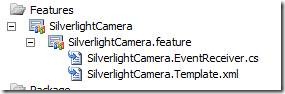
Figure: right click on the feature (.feature) and add an event receiver.
Waldek has a magical event handler code that fixes this problem
[http://blog.mastykarz.nl/inconvenient-content-query-web-part-server-relative-urls/](http://blog.mastykarz.nl/inconvenient-content-query-web-part-server-relative-urls/)
So I'll just post my bit of code here
public override void FeatureActivated(SPFeatureReceiverProperties properties)
{
// one day when I meet Waldek in person I will buy him beer
// http://blog.mastykarz.nl/inconvenient-content-query-web-part-server-relative-urls/
SPSite site = properties.Feature.Parent as SPSite;
if (site != null)
{
SPList webPartsGallery = site.GetCatalog(SPListTemplateType.WebPartCatalog);
SPListItemCollection allWebParts = webPartsGallery.Items;
SPListItem webPart = (from SPListItem wp in allWebParts
where wp.File.Name == "SilverlightCamera.webpart"
select wp).SingleOrDefault();
if (webPart != null)
{
string siteCollectionUrl = site.ServerRelativeUrl;
if (!siteCollectionUrl.EndsWith("/"))
{
siteCollectionUrl += "/";
}
string fileContents = Encoding.UTF8.GetString(webPart.File.OpenBinary());
fileContents = fileContents.Replace("~sitecollection/", siteCollectionUrl);
webPart.File.SaveBinary(Encoding.UTF8.GetBytes(fileContents));
}
}
}
During Feature Activated - find the webpart and fix the ~sitecollection marker with the real site collection URL.
Deploy and activate the feature again.
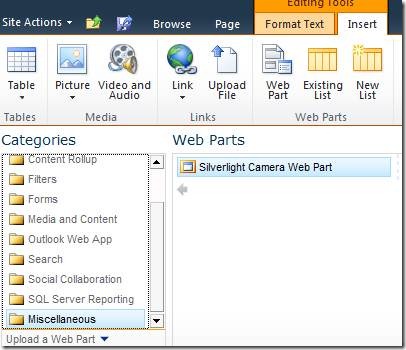
Success! Our .webpart now appearing in the web part gallery.
Discussions