Self-service Microsoft Form for external guests to use Power App
This is a walk through of the steps to create a self-service guest user sign up using Microsoft Forms and redirects to the Power App.
Steps
-
Create a Microsoft Form to capture external user’s email address
-
Create the app registration to be able to make a Microsoft Graph invitation call
-
Use Power Automate via Microsoft Graph invitation API to add this email as external user to tenant
-
Add user to a group that the app is shared with
-
Redirect back to the Power App (or SharePoint extranet site, or Teams)
Create Microsoft Form
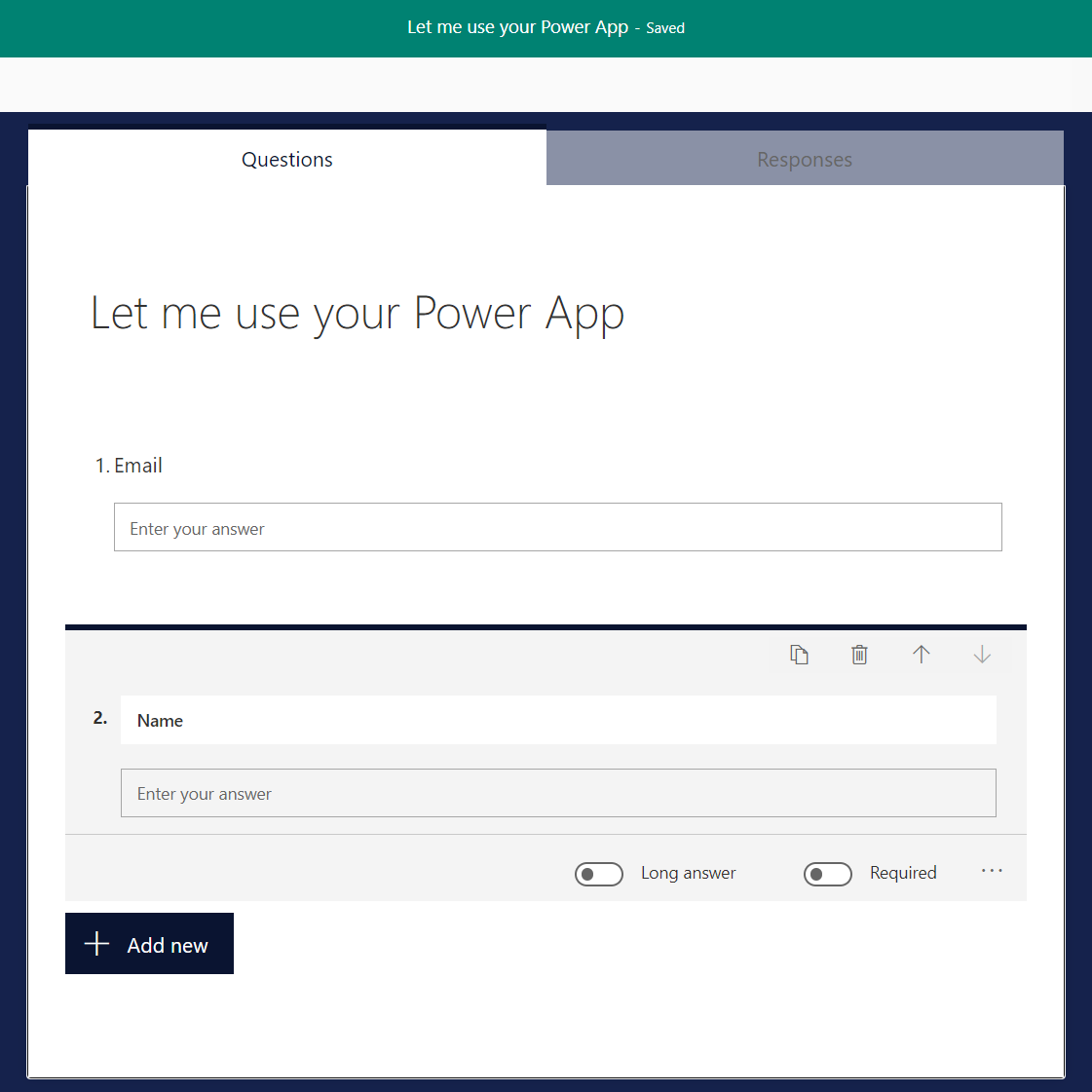
- Change setting to allow anonymous - anyone can access this if they go to the form’s public shared URL
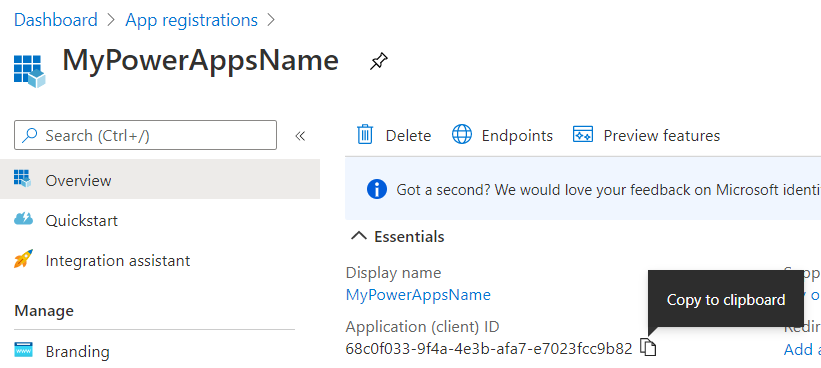
Create App Registration in Azure AD Portal
-
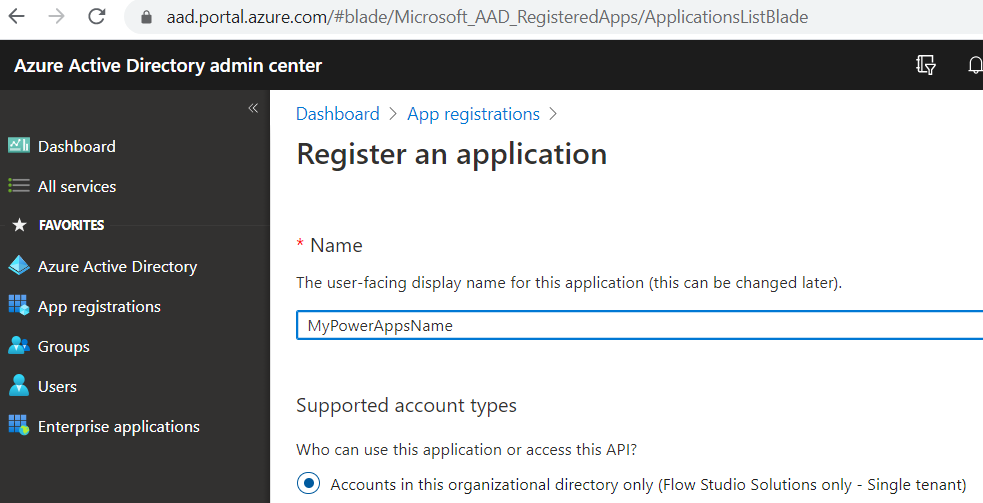
Go to Azure AD portal > App registration
-
You should name this app similar to your Power App name - it doesn’t need to be the same, but it’s less confusing to your tenant admins when reviewing the registered apps in Azure Portal.
-
As this app registration is only used for your tenant - it can be Single Tenant
-
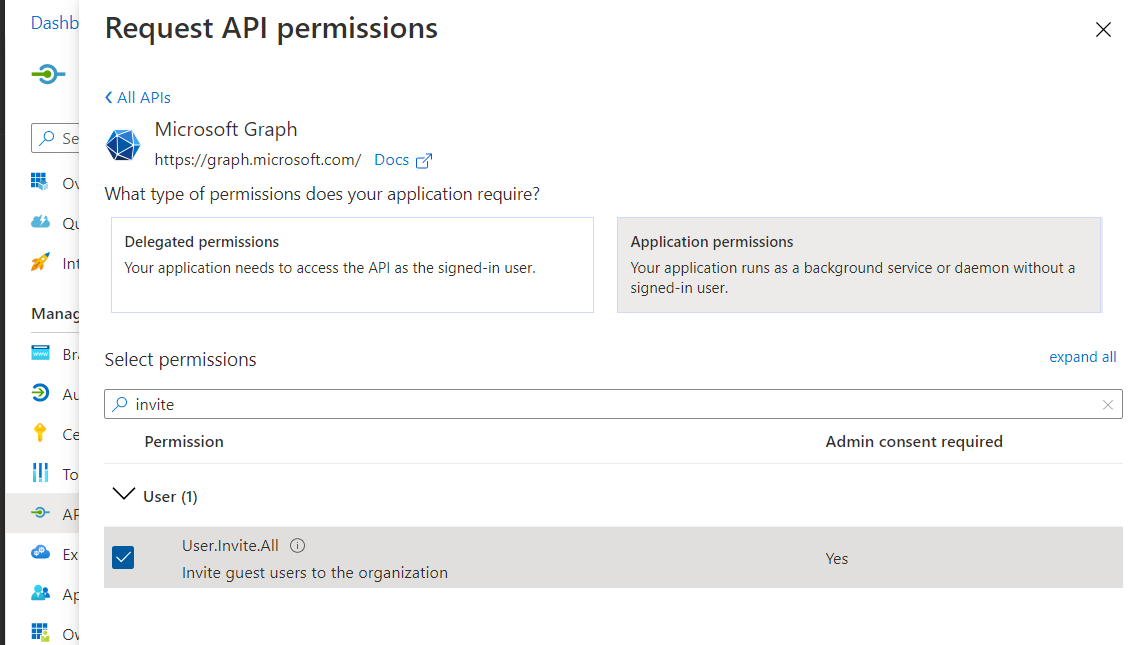
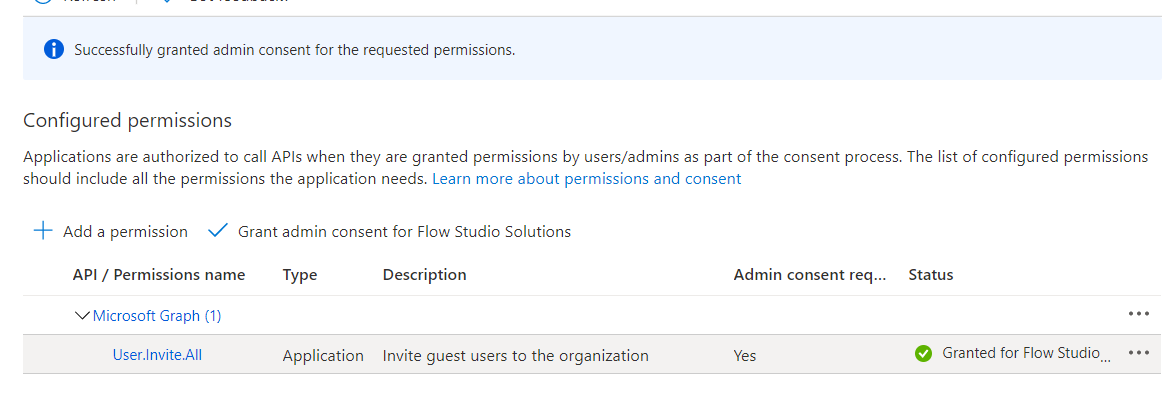
Add Application Permission for User.Invite.All
-
This is a tenant admin consent required permission, so grant it here, or ask a tenant admin to grant it.
-
You will need to generate a Client Secret (no screen shot included), save that client secret.
-
You will also need to copy the Client ID
-
You will also need to copy the Directory ID (tenant ID)
Oh we need a Power App
-
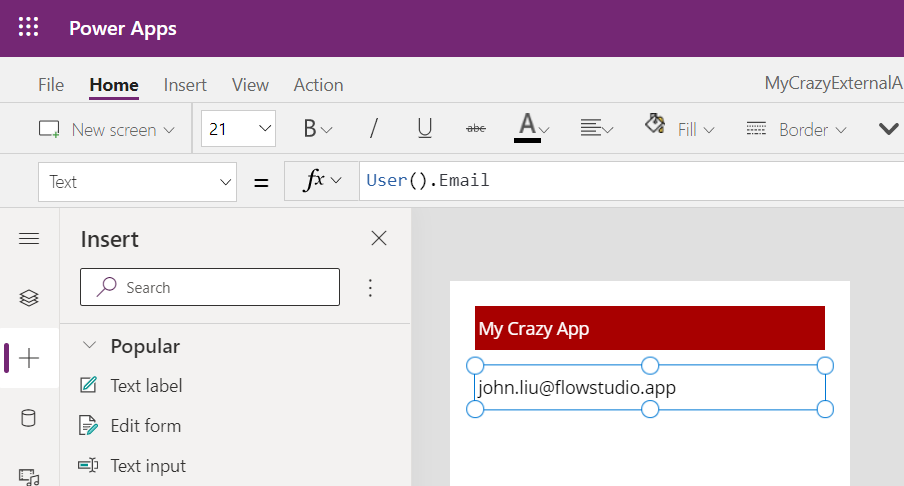
Made a quick Power App here - the text label shows the current user’s email. For external user this would show external email (to proof this works).
-
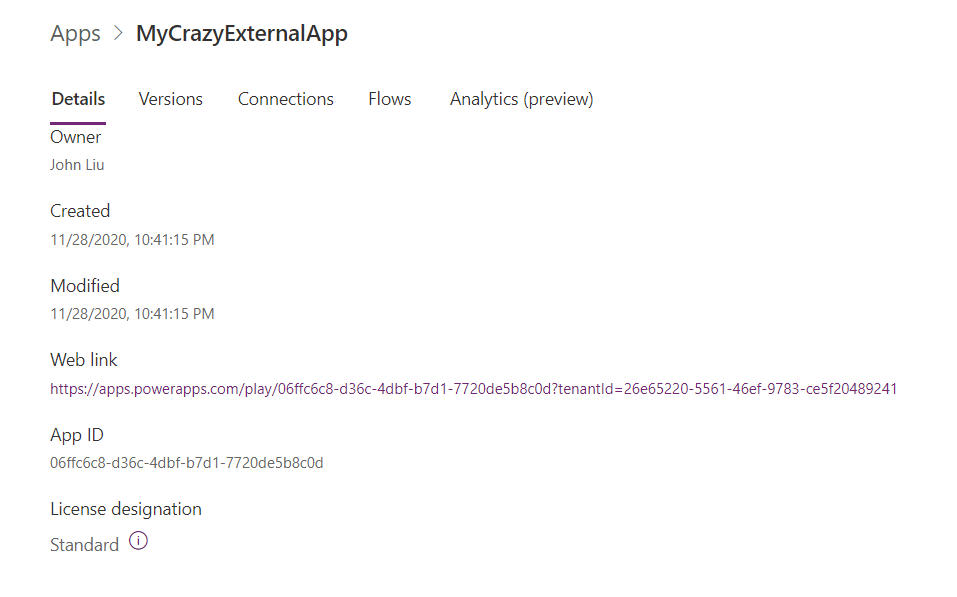
For Sharing - I’ve made this Power App shared with Everyone.
-
We need to copy the Web link with the tenant-id
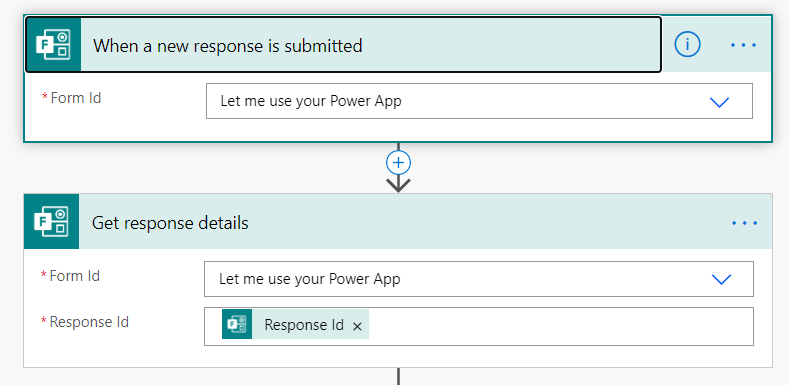
Now we need a Power Automate (Flow)
-
Run on Microsoft Form submission
-
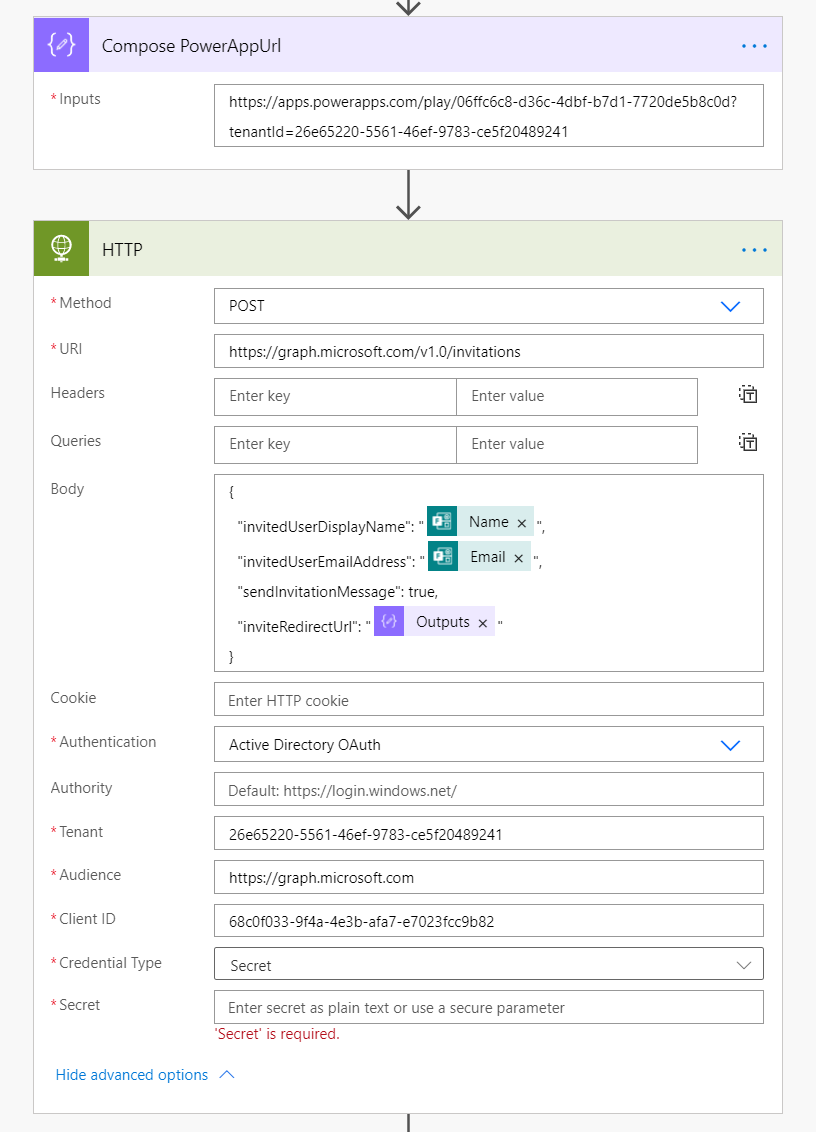
We’ll need this redirect URL - when external guest invite is complete, redirect to our Power App
-
Because we registered an “Application Permission”, we can use the HTTP action to call Microsoft Graph without using delegate permission.
-
See also https://docs.microsoft.com/en-us/graph/api/invitation-post?view=graph-rest-1.0&tabs=http
-
Enter: Tenant, Audience, Client ID, Client Secret (not included in picture)
-
You should have all these values by this point.
-
The JSON message to send to Microsoft Graph should have the redirect URL back to the Power App
-
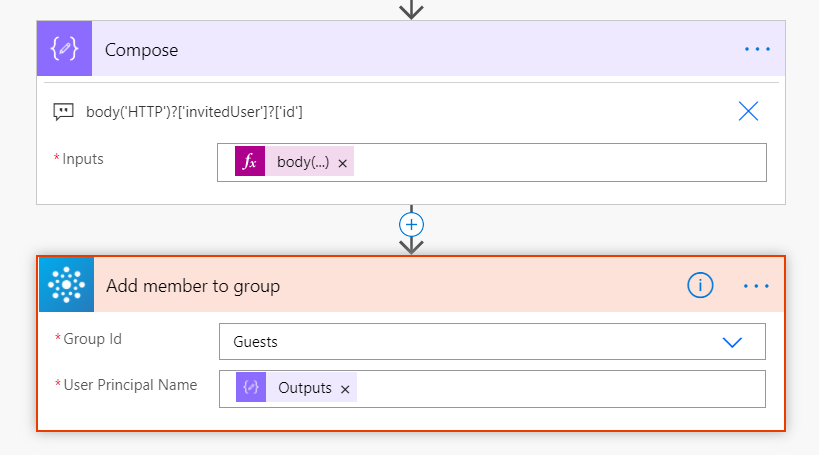
If successful we will get a user Object ID - we should add this to a Group as you need.
-
In my simplified example since my Power App is shared with Everyone - the external guest user will get access to it without being a member to a group.
Result
-
Switch to an external tenant (special thank you for Blackmores for example here)
-
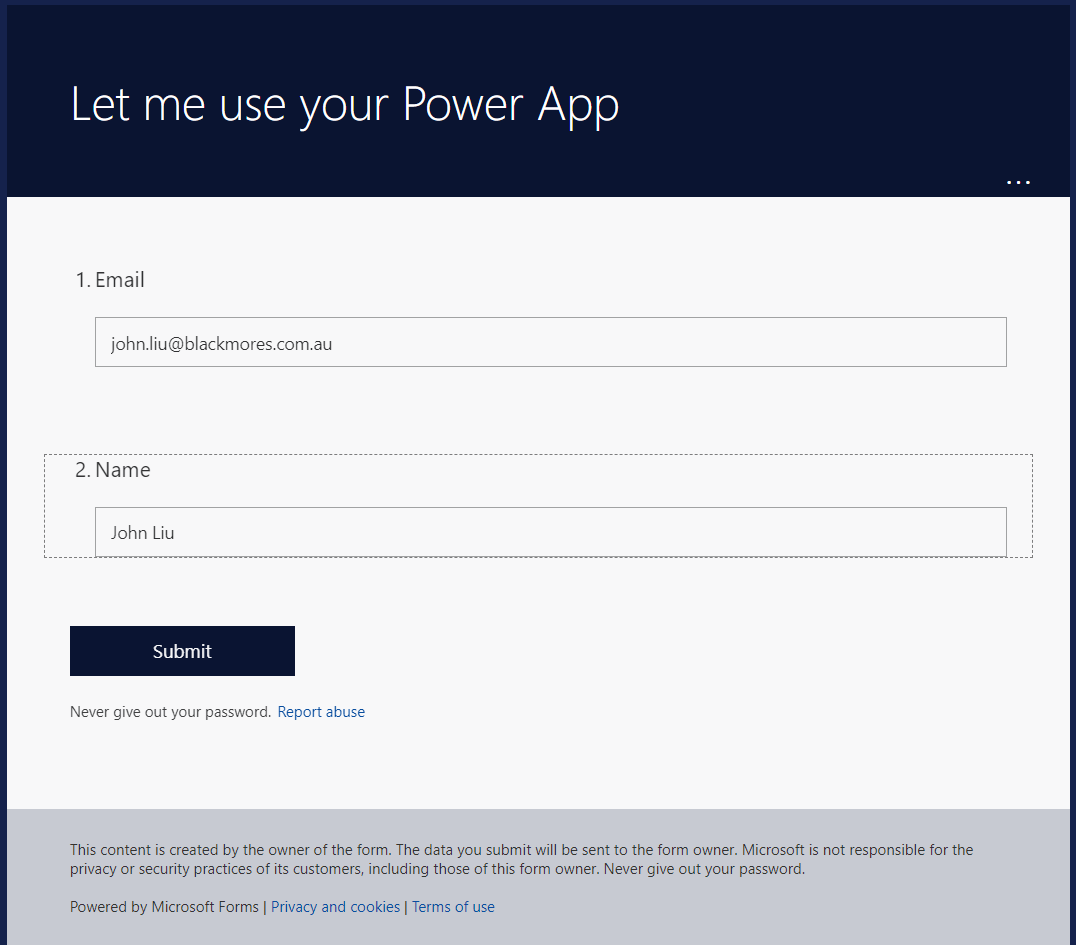
Fill in the form
-
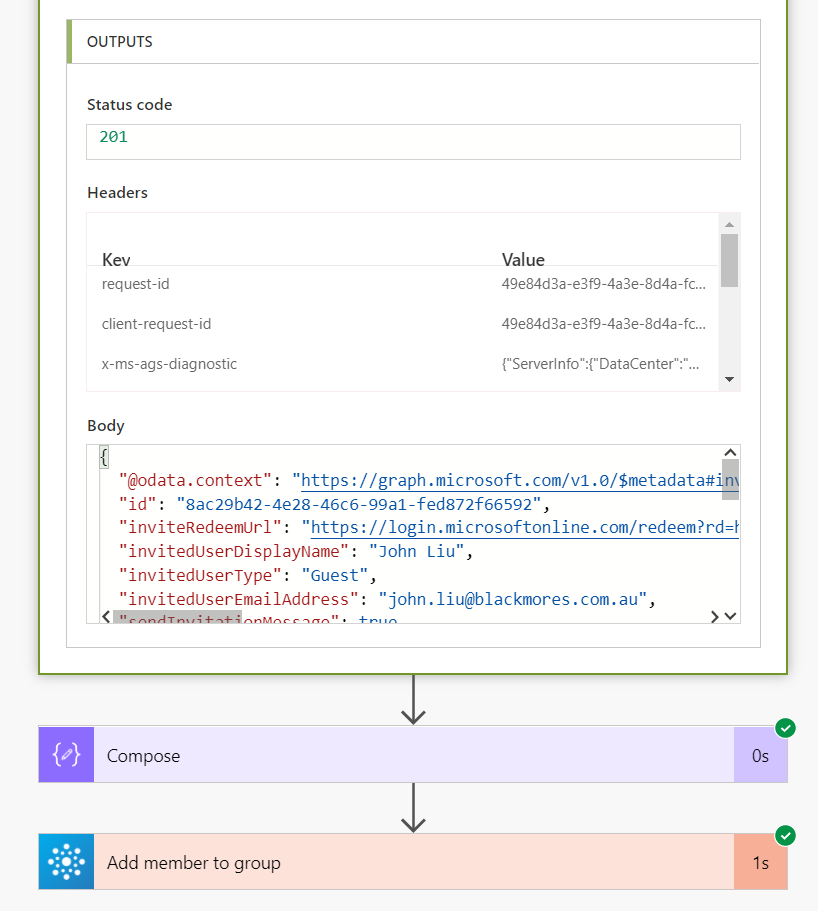
See the flow trigger and create an invitation from my tenant (Flow Studio Solutions) to guest tenant (Blackmores)
-
The guest email is added as a guest user type in my tenant
-
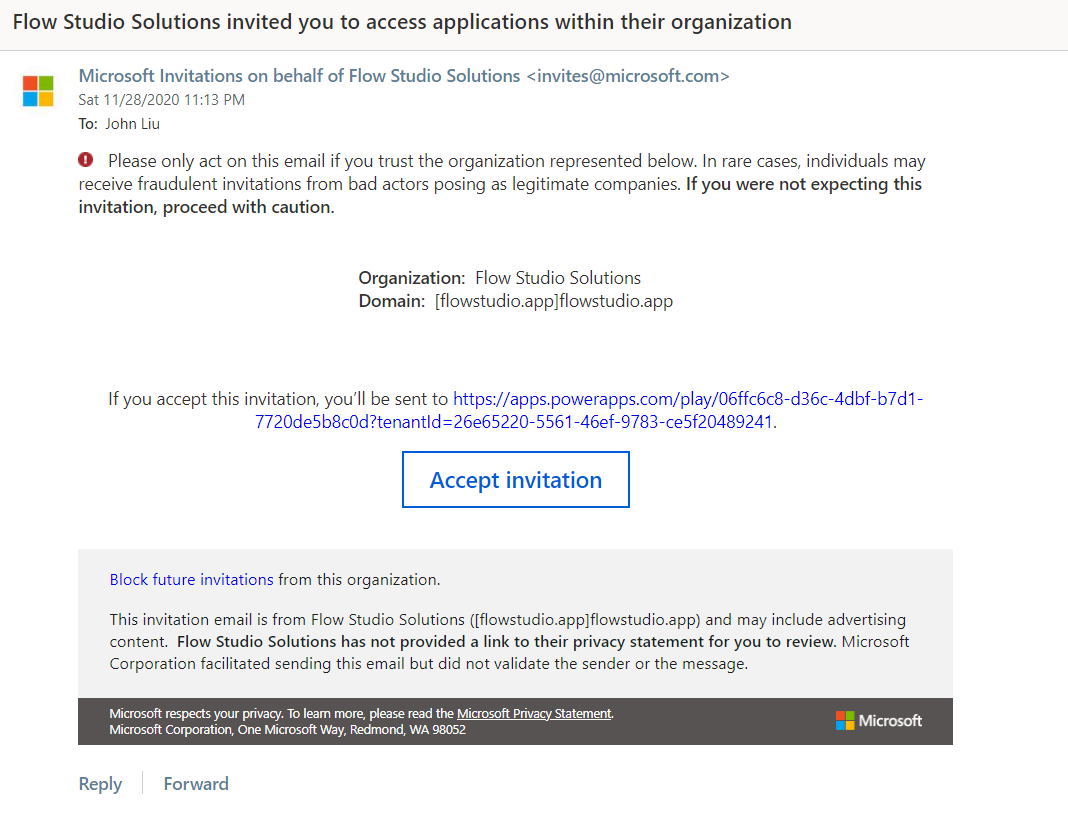
In the email of the guest email - Microsoft Azure AD sends a B2B invitation email
-
Note the redirect URL is the Power App we will be redirected to at the end of the guest invitation process
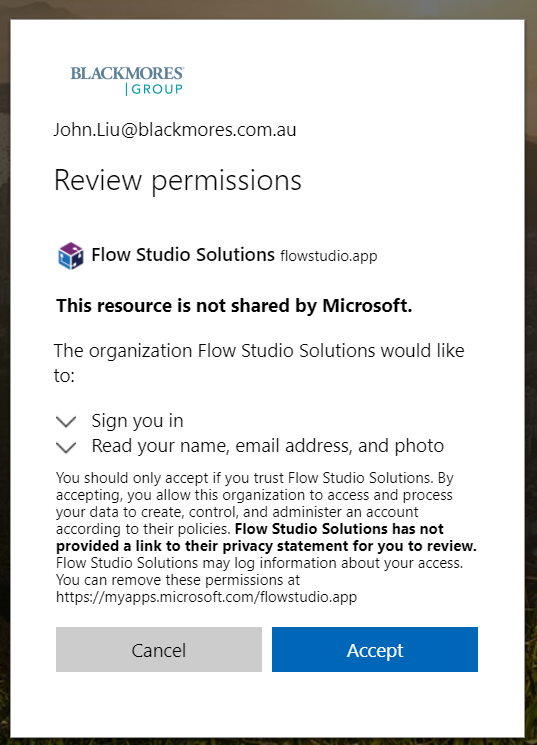
- First time accepting will create this permission dialog reviewing that you (as guest) indeed want to be added to the external tenant. They will see your email, name and photo.
-
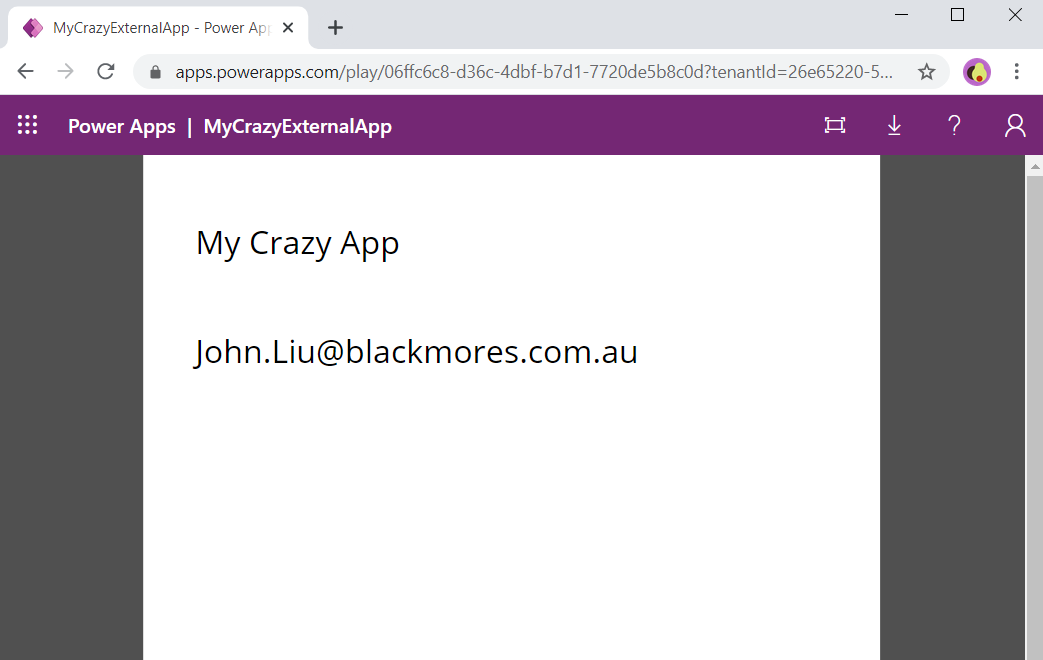
After successful redirect - the Power App loads, and look I’m using the Power App as an external user with external email address.
-
If the external user clicks the accept in the email again - they will skip the permission review process and be redirected by Azure AD into the Power App directly.
Variations and extra homework
-
The triggering mechanism doesn’t need to be Microsoft Forms. It can be a HTTP Request trigger that accepts an email address. In a scenario where I’ve build a child tenant to a parent tenant - some javascript on the child tenant send a POST request to the flow to initiate the invitation.
-
The email doesn’t need to be sent directly. The invitation API returns a redemption URL - which can be returned by the Flow in a HTTP Response to a calling javascript, and the user can be redirected to that redemption URL directly without needing to go through an email.
-
You can also capture the redemption URL and create your own email template.
-
You don’t need to redirect to Power App - you can be redirected to a SharePoint extranet that now includes the new guest user. Or to the Teams (by adding the guest user to the team’s group membership).
Discussions