Pretty up SharePoint 2010 mysite with showModalDialog (updated)
[This is an updated article from /blog/2011/8/3/sp2010-pretty-up-mysite-with-showmodaldialog.html.]
SharePoint 2010 My Site
SharePoint 2010 ships with this pretty mysite. Packed with numerous features.

The problem with My Site, even back in the days of SharePoint 2007, is that your users get lost. It doesn’t look anything like your nice branded site. It doesn’t share the same global navigation. In fact, users are so lost that they think they are in a place that they shouldn’t be in.
Result? They close the browser. Sometimes, if they are nasty, they tell their colleagues that the Intranet sucks - they can never find anything.
If only we can render our mysite in a SharePoint 2010 showModalDialog, then it would look like this:
My Site in a modal dialog
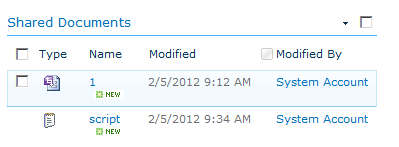
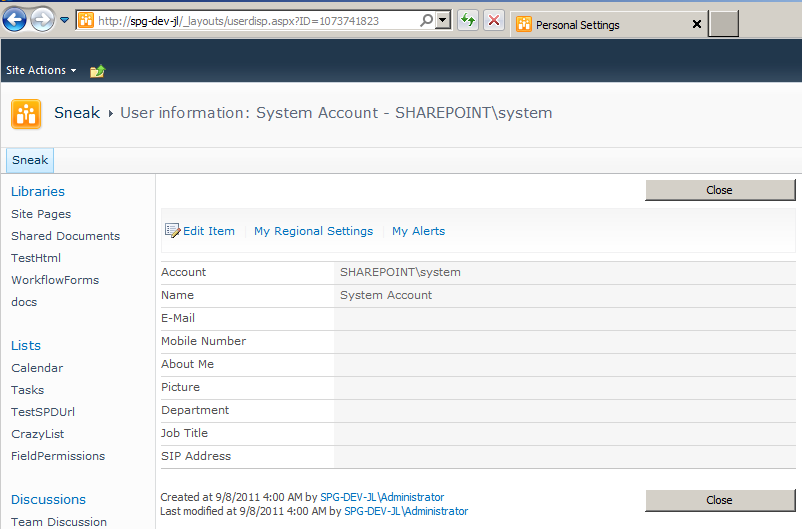
Figure: EEk! Where the heck am I?
We add this bit of jQuery
$(function(){
$(“a[href*=‘userdisp’]“).click(function(e){
SP.UI.ModalDialog.showModalDialog({
url: $(this).attr(“href”),
autoSize: true
});
e.preventDefault();
}).attr(“onclick”,"");
});
Result - User Information in a pop up:
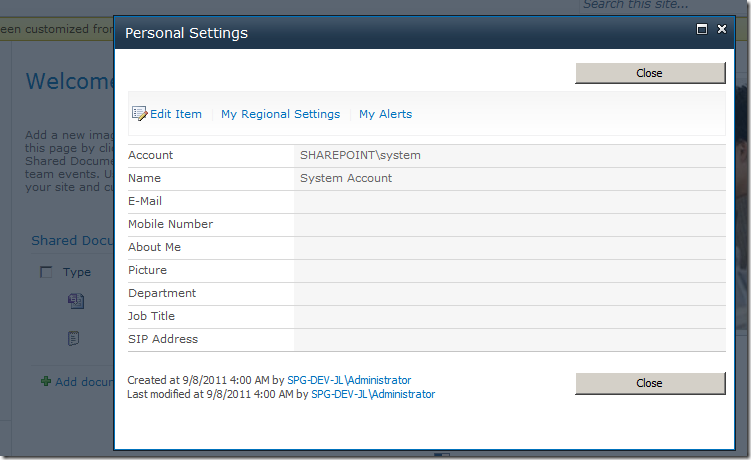
Figure: Now isn’t this far more useful?!
Changing My Site
We have these two links that sends our users into Alice’s Wonderland.
window.oldSTSNavigate2 = window.STSNavigate2;
window.STSNavigate2 = function (evt, Url) {
if (Url.indexOf(“/MySite/”) >= 0) { // if the url contains mysite - open it in showModalDialog
SP.UI.ModalDialog.showModalDialog({
url: Url + ”#”,
title: “My Site”,
autoSize: true
});
return;
}
// otherwise call the old version of STSNavigate2
window.oldSTSNavigate2(evt, Url);
};
});
Result - My Site in a pop up:

Notes - some odd CSS issues:
When a page is rendered in the modal dialog, SharePoint will automatically insert &IsDlg=1 to the argument.
My Site doesn’t appear to have been exhaustively tested with IsDlg - and there are odd CSS issues that does appear. Depending on the features that you plan to activate on your My Site, you may still need to invest in a small bit of CSS work to make sure nothing strange appears when My Site is shown in a Pop Up.
Still, I argue that the small CSS fixes are a lot less work than completely rebranding your My Site.
In general though, majority of the functionality are available without further modification and this is a good way to quickly test if this could work for you and your organisation. Do let me know how this works for you!
Discussions