Dummy guide to install Win 8 on VHD for Boot to VHD
Summarized from:
- http://www.hanselman.com/blog/GuideToInstallingAndBootingWindows8DeveloperPreviewOffAVHDVirtualHardDisk.aspx
- http://technet.microsoft.com/en-us/library/gg318049(WS.10).aspx
You’ll need:
- http://windows.microsoft.com/en-US/windows-8/consumer-preview
- http://www.slysoft.com/en/virtual-clonedrive.html (or some way to load the ISO into a virtual DVD)
- This PowerShell script http://archive.msdn.microsoft.com/InstallWindowsImage/Release/ProjectReleases.aspx?ReleaseId=2662
Set up boot to VHD!
- Create a VHD
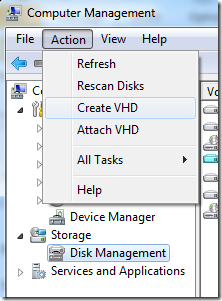
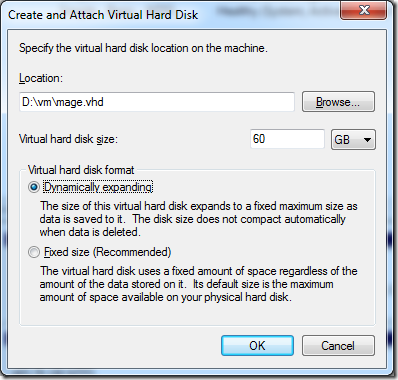
Note: I make this a dynamic disk, although I allocated up to 60GB, it only uses what it needs which was about 10 GB.
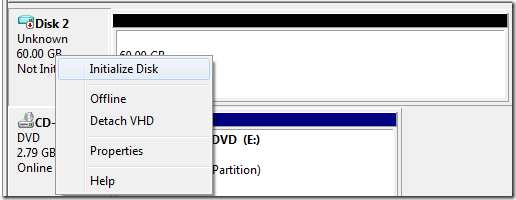
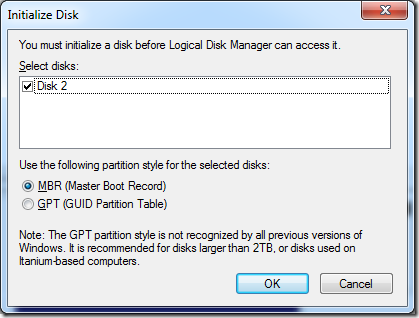
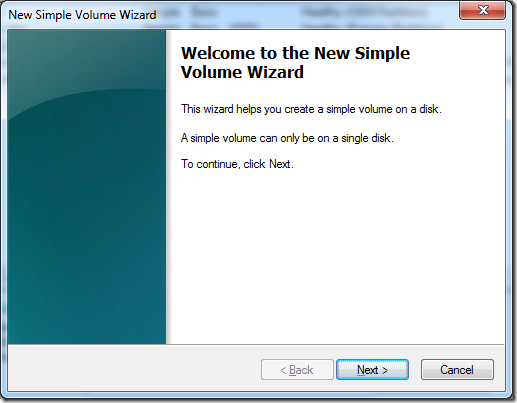
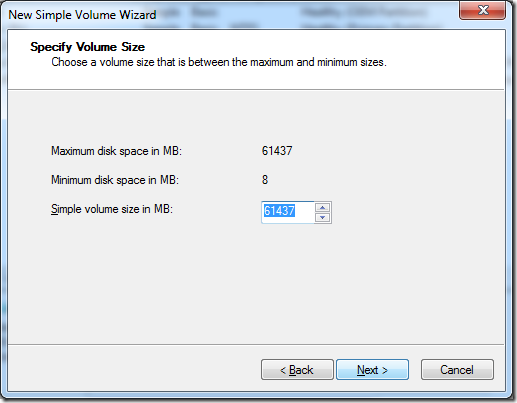
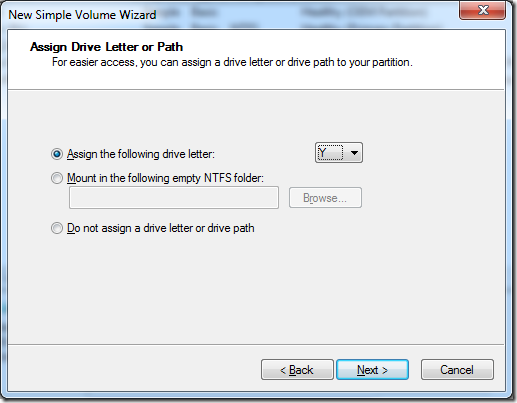
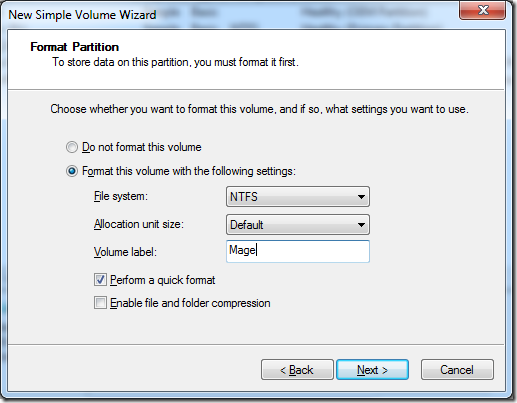
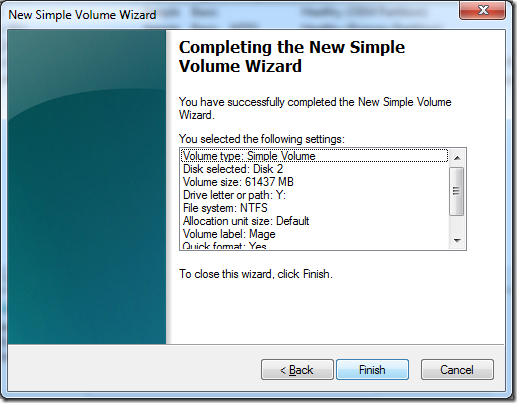
Created, and attached the VHD to Y:
Load the ISO into a virtual CD drive, mine is G:
I use virtualclonedrive to load ISO - this is a free utility.
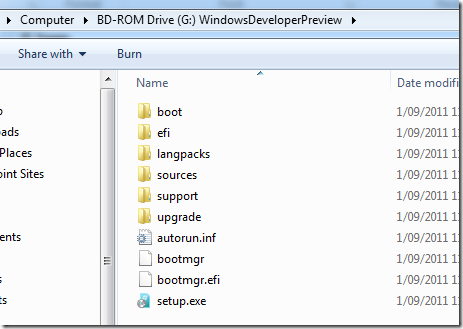
Next install the windows image into the VHD
Easiest way that worked for me is this wonderful powershell script.
- http://archive.msdn.microsoft.com/InstallWindowsImage/Release/ProjectReleases.aspx?ReleaseId=2662
- http://technet.microsoft.com/en-us/library/gg318049(WS.10).aspx
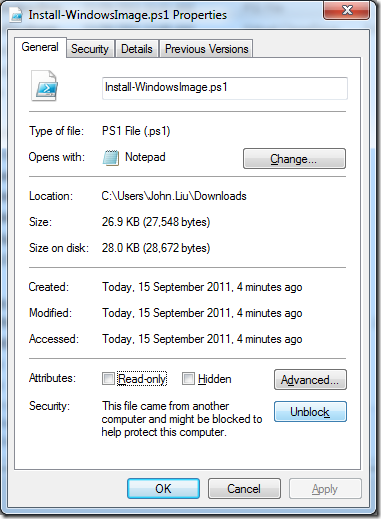
Remember to unblock this script
If you see:
File C:\Install-WindowsImage.ps1 cannot be loaded because the execution of scripts is disabled on this system. Please see “get-help about_signing” for more details.
You will need to allow remote script
PS C:\>set-executionpolicy remotesigned
PS C:\> .\Install-WindowsImage.ps1 -WIM G:\sources\install.wim
Index Image Name
[1] Windows Consumer Preview
Done.
PS C:\> .\Install-WindowsImage.ps1 -WIM G:\sources\install.wim -Apply -Index 1 -Destination Y:
**PS C:\> .\Install-WindowsImage.ps1 -WIM G:\sources\install.wim -Apply -Index 1 -Destination Y:
**Applying “Windows 8 Consumer Preview” to Y:…
WARNING: This may take up to 15 minutes…
Elapsed Time: 00:08:40.4870618
PS C:\>
Lastly, make the VM a boot record.
**PS C:\> bcdboot Y:\Windows\
**Boot files successfully created.
You can check it with bcdedit
PS C:\>bcdedit
Windows Boot Loader
-------------------
identifier {default}
device partition=Y:
path \Windows\system32\winload.exe
description Windows 8 Consumer Preview
locale en-us
inherit {bootloadersettings}
custom:17000077 352321653
osdevice partition=Y:
systemroot \Windows
resumeobject {1abc7489-8e4b-11e0-877a-af036ca44d2f}
nx OptIn
custom:250000c2 1
detecthal Yes
Windows Boot Loader
-------------------
identifier {current}
device partition=C:
path \Windows\system32\winload.exe
description Windows 7
locale en-US
inherit {bootloadersettings}
recoverysequence {1abc7482-8e4b-11e0-877a-af036ca44d2f}
recoveryenabled Yes
osdevice partition=C:
systemroot \Windows
resumeobject {1abc7480-8e4b-11e0-877a-af036ca44d2f}
nx OptIn
Restart and you are off to go
Your PC will boot into Windows 8, which has a new happy looking boot loader. If you feel the 30 second delay is too long, you can change the delay to 5 seconds from the boot loader options.
Discussions